Google’s automated ranking systems are designed to present helpful, reliable information that’s primarily created to benefit people, not to gain search engine rankings, in the top Search results. This page is designed to help creators evaluate if they’re producing such content.
Self-assess your content
Evaluating your own content against these questions can help you gauge if the content you’re making is helpful and reliable. Beyond asking yourself these questions, consider having others you trust but who are unaffiliated with your site provide an honest assessment.
Also consider an audit of the drops you may have experienced. What pages were most impacted and for what types of searches? Look closely at these to understand how they’re assessed against some of the questions outlined here.
Content and quality questions
Does the content provide original information, reporting, research, or analysis?
Does the content provide a substantial, complete, or comprehensive description of the topic?
Does the content provide insightful analysis or interesting information that is beyond the obvious?
If the content draws on other sources, does it avoid simply copying or rewriting those sources, and instead provide substantial additional value and originality?
Does the main heading or page title provide a descriptive, helpful summary of the content?
Does the main heading or page title avoid exaggerating or being shocking in nature?
Is this the sort of page you’d want to bookmark, share with a friend, or recommend?
Would you expect to see this content in or referenced by a printed magazine, encyclopedia, or book?
Does the content provide substantial value when compared to other pages in search results?
Does the content have any spelling or stylistic issues?
Is the content produced well, or does it appear sloppy or hastily produced?
Is the content mass-produced by or outsourced to a large number of creators, or spread across a large network of sites, so that individual pages or sites don’t get as much attention or care?
Expertise questions
Does the content present information in a way that makes you want to trust it, such as clear sourcing, evidence of the expertise involved, background about the author or the site that publishes it, such as through links to an author page or a site’s About page?
If someone researched the site producing the content, would they come away with an impression that it is well-trusted or widely-recognized as an authority on its topic?
Is this content written or reviewed by an expert or enthusiast who demonstrably knows the topic well?
Does the content have any easily-verified factual errors?
Provide a great page experience
Google’s core ranking systems look to reward content that provides a good page experience. Site owners seeking to be successful with our systems should not focus on only one or two aspects of page experience. Instead, check if you’re providing an overall great page experience across many aspects. For more advice, see our page, Understanding page experience in Google Search results.
Focus on people-first content
People-first content means content that’s created primarily for people, and not to manipulate search engine rankings. How can you evaluate if you’re creating people-first content? Answering yes to the questions below means you’re probably on the right track with a people-first approach:
Do you have an existing or intended audience for your business or site that would find the content useful if they came directly to you?
Does your content clearly demonstrate first-hand expertise and a depth of knowledge (for example, expertise that comes from having actually used a product or service, or visiting a place)?
Does your site have a primary purpose or focus?
After reading your content, will someone leave feeling they’ve learned enough about a topic to help achieve their goal?
Will someone reading your content leave feeling like they’ve had a satisfying experience?
Avoid creating search engine-first content
We recommend that you focus on creating people-first content to be successful with Google Search, rather than search engine-first content made primarily to gain search engine rankings. Answering yes to some or all of the questions below is a warning sign that you should reevaluate how you’re creating content:
Is the content primarily made to attract visits from search engines?
Are you producing lots of content on many different topics in hopes that some of it might perform well in search results?
Are you using extensive automation to produce content on many topics?
Are you mainly summarizing what others have to say without adding much value?
Are you writing about things simply because they seem trending and not because you’d write about them otherwise for your existing audience?
Does your content leave readers feeling like they need to search again to get better information from other sources?
Are you writing to a particular word count because you’ve heard or read that Google has a preferred word count? (No, we don’t.)
Did you decide to enter some niche topic area without any real expertise, but instead mainly because you thought you’d get search traffic?
Does your content promise to answer a question that actually has no answer, such as suggesting there’s a release date for a product, movie, or TV show when one isn’t confirmed?
Are you changing the date of pages to make them seem fresh when the content has not substantially changed?
Are you adding a lot of new content or removing a lot of older content primarily because you believe it will help your search rankings overall by somehow making your site seem “fresh?” (No, it won’t)
What about SEO? Isn’t that search engine-first?
There are some things you could do that are specifically meant to help search engines better discover and understand your content. Collectively, this is called “search engine optimization” or SEO, for short. Google’s own SEO guide covers best practices to consider. SEO can be a helpful activity when it is applied to people-first content, rather than search engine-first content.
Get to know E-E-A-T and the quality rater guidelines
Google’s automated systems are designed to use many different factors to rank great content. After identifying relevant content, our systems aim to prioritize those that seem most helpful. To do this, they identify a mix of factors that can help determine which content demonstrates aspects of experience, expertise, authoritativeness, and trustworthiness, or what we call E-E-A-T.
Of these aspects, trust is most important. The others contribute to trust, but content doesn’t necessarily have to demonstrate all of them. For example, some content might be helpful based on the experience it demonstrates, while other content might be helpful because of the expertise it shares.
While E-E-A-T itself isn’t a specific ranking factor, using a mix of factors that can identify content with good E-E-A-T is useful. For example, our systems give even more weight to content that aligns with strong E-E-A-T for topics that could significantly impact the health, financial stability, or safety of people, or the welfare or well-being of society. We call these “Your Money or Your Life” topics, or YMYL for short.
Search quality raters are people who give us insights on if our algorithms seem to be providing good results, a way to help confirm our changes are working well. In particular, raters are trained to understand if content has strong E-E-A-T. The criteria they use to do this is outlined in our search quality rater guidelines.
Search raters have no control over how pages rank. Rater data is not used directly in our ranking algorithms. Rather, we use them as a restaurant might get feedback cards from diners. The feedback helps us know if our systems seem to be working.
Reading the guidelines may help you self-assess how your content is doing from an E-E-A-T perspective, improvements to consider, and help align it conceptually with the different signals that our automated systems use to rank content.
Ask “Who, How, and Why” about your content
Consider evaluating your content in terms of “Who, How, and Why” as a way to stay on course with what our systems seek to reward.
Who (created the content)
Something that helps people intuitively understand the E-E-A-T of content is when it’s clear who created it. That’s the “Who” to consider. When creating content, here are some who-related questions to ask yourself:
Is it self-evident to your visitors who authored your content?
Do pages carry a byline, where one might be expected?
Do bylines lead to further information about the author or authors involved, giving background about them and the areas they write about?
If you’re clearly indicating who created the content, you’re likely aligned with the concepts of E-E-A-T and on a path to success. We strongly encourage adding accurate authorship information, such as bylines to content where readers might expect it.
How (the content was created)
It’s helpful to readers to know how a piece of content was produced: this is the “How” to consider including in your content.
For example, with product reviews, it can build trust with readers when they understand the number of products that were tested, what the test results were, and how the tests were conducted, all accompanied by evidence of the work involved, such as photographs. It’s advice we share more about in our Write high quality product reviews help page.
Many types of content may have a “How” component to them. That can include automated, AI-generated, and AI-assisted content. Sharing details about the processes involved can help readers and visitors better understand any unique and useful role automation may have served.
If automation is used to substantially generate content, here are some questions to ask yourself:
Is the use of automation, including AI-generation, self-evident to visitors through disclosures or in other ways?
Are you providing background about how automation or AI-generation was used to create content?
Are you explaining why automation or AI was seen as useful to produce content?
Overall, AI or automation disclosures are useful for content where someone might think “How was this created?” Consider adding these when it would be reasonably expected. For more, see our blog post and FAQ: How Google Search views AI-generated content.
Why (was the content created)
“Why” is perhaps the most important question to answer about your content. Why is it being created in the first place?
The “why” should be that you’re creating content primarily to help people, content that is useful to visitors if they come to your site directly. If you’re doing this, you’re aligning with E-E-A-T generally and what our core ranking systems seek to reward.
If the “why” is that you’re primarily making content to attract search engine visits, that’s not aligned with what our systems seek to reward. If you use automation, including AI-generation, to produce content for the primary purpose of manipulating search rankings, that’s a violation of our spam policies.
“I want to own my website” Sooner or later, every web design company needs to address this request. Simple as it sounds, it really is complicated. A website is built with many assembled parts and you may be surprised to learn who legally owns each part.
The following website terminology is a guide of what you really own and what you’re really just leasing.
To keep up with the digital world, Mastercard is removing their name from the logo as part of a “reinvention” of the brand.
As a company following the digital updates so well that they even adapt the biometric fingerprint verification, Mastercard evolves their logo once again.
If you are an entrepreneur, it’s a fact that you are constantly on the quest to find new ways to grow your business and make connections that will contribute to the growth of your small business.
Networking is one of the oldest tricks in the book – but if done right, it can take you a long way on your journey to establishing successful business relationships.
Marketing is probably one of the most important key factors in growing your business. The modern era offers many avenues to explore when it comes to gaining and retaining clients, all whilst promoting your business and service offering. Social media platforms offer the opportunity to advertise and reach cold audiences, printed collateral allows your target market to get hands-on with your brand, and referrals mean prospective clients hear about you from those they trust.
An eCommerce store needs a formidable online presence—of which a good website and quality products are just the beginning. The real challenge lies in letting probable customers know that your brand exists amidst the digital racket. This is where search engine optimization (SEO) and social media marketing come in.
When a client asks, “Why aren’t we gaining more followers?” or “How do our social channels increase our revenue?” it’s a signal to revisit your social media goals.
Goals are no longer vanity targets like hitting 10,000 followers. They’ve become the foundation for meaningful results and client satisfaction. Whether it’s growing brand awareness, increasing website traffic, or boosting conversions, clear, actionable goals make it easier to prove the value of your agency’s work.
To design efficient and memorable logos in 2025, you need a blend of creativity and strategic thinking. As the trends and technologies in graphic design continue to evolve, understanding them is essential to staying ahead of the curve and delivering modern solutions created customary or by logo makers.
Women’s accessories sold by Shein, Temu and AliExpress contained toxic substances sometimes hundreds of times above acceptable levels, authorities in South Korea found. 144 products from the retailer were tested, and multiple products from all companies failed to meet legal standards. Seoul officials have asked for the products to be removed from sale.
by Mariska Wiese-Schalekamp – Website Developer at Glixie Media t/u House of Pixels (Pty) Ltd
Log into your WordPress Dashboard.
Go to Posts.
Select Add New.
Use the screen provided to create your post as desired.
Click Publish when you are done creating your post. The post will display on the blogging page of your website.
Add content
You’ve arrived on the blank canvas where you’ll add your masterpiece (AKA your content). But before starting this process, we have a few pointers. First, be sure to save your work frequently or write it in a separate Google or Word document and copy it over to the content management systems (CMS). This is a wise idea because,
while WordPress does save your progress automatically, it might not pick up on changes made if you lose your internet connection. Not to mention, drafting your content in a separate document is good idea so you don’t get overwhelmed by simultaneously formatting, editing, and writing.
Click the “Save draft” button in the upper right-hand corner to save.
Now, it’s time to add your content. To do so, copy-paste your original text directly into WordPress.
WordPress uses a block editor, which works exactly as you’d imagine — by creating blocks for each section of content you add. For example, paragraphs will be separated into blocks, as will images and headings.
Uploading Images
Once you’ve written your first piece, you’ll need to add images to your WordPress blog post. Adding images can make your content more digestible and visually engaging. To begin uploading a picture, press “enter” on your keyboard to create a new block. Then, click the “+” button in the top left corner to view the different blocks. Select the “Image” block.
Now, upload your image. You can either upload one from your computer, select one from the WordPress media library, or insert an image with a URL from a site like Flickr. Dont forget to add alt text to your image for accessibility and search engine optimization.
Once you’ve completed this step, your image should be visible in the block. You can repeat this process as necessary — if your article is long, we suggest adding a few images to break up the text and make it more readable.
Pro Tip: People recall 65% of the information they see presented visually — so don’t forget to use infographics on your blog!
Adding Links
Adding internal and external links is an essential way to boost your blog post quality.
The anchor text is also crucial for SEO as it indicates to site crawlers what the page you’re linking to is about. It’s easy to add hyperlinks to your content in WordPress. You can do so in two ways. The first way is to select the text you want to hyperlink. Then, find the floating menu box and select the link icon highlighted in blue below.
Add a URL in the box that appears.
Click “Enter” to insert the URL. And ta-da, you’ve done it!
The more straightforward way to add hyperlinks is by using a keyboard shortcut. Start by selecting the text you want to hyperlink.
Then, press Control+K (PC) to bring up the box and add your URL on your keyboard.
Pro Tip: Its up to you to decide whether youd like your links to open in a new tab. Generally speaking, if a link is external, or youd like the visitor to stay on the page theyre currently on, turn on the option to open in a new tab.
Format the post
Spoiler alert: It’s just as important that your content is organized as it is well-written. Without formatting in place, your audience is more likely to get overwhelmed by massive blocks of text and leave the page quickly (therefore impacting your bounce rate). Here’s how to format your post.
Pro Tip: Readers don’t want to spend time figuring out how to navigate your post, so make it easy for them with clear formatting. We’ll dive into how you can do so now.
Headings
To organize a blog post, use headings. Headings tell the reader (and the search engines) what is essential on the page using a hierarchy. It’s a win-win: Your readers know what to expect, and your site is more findable for search engines. Plus, it allows your readers to better pace their reading experience. And that’s not to mention how it makes your blog post look better aesthetically speaking.
Here’s how it works: An H1 is the title of a page and lives at the top of the hierarchy and the top of the page. A blog post only has one H1. If you add more, you risk confusing Google — and your reader. In other words, don’t do it.
H2s are subheadings. You might have one, two, or more of these in your post. H2s are next in line in the hierarchy of a blog post. They always go below an H1, and if you’re trying to rank for a keyword on Google, it’s a good idea to try to include it in at least a few H2s — without keyword stuffing, of course. H3s follow a similar order — they always go below H2s. Think of an H3 as a subcategory. All subsequent headings follow the same pattern.
Let’s walk through an example. Say you’re writing a blog post about the best dog breeds for families. Your H1 could be: “The 10 Best Dog Breeds for Families.” Your H2s could be: “Why choose a family-friendly dog breed?” and “What are the best dog breeds for families?” Under the second H2, you could elaborate on breeds that are recommended. To do this, add H3s such as “Golden Retriever,” “Labrador Retriever,” “Cavalier King Charles Spaniel.” And under each H3 you may add an H4s such as “Why Choose This Breed” where you can provide additional information.
This results in a more digestible experience for readers and search engines.
To change a heading in a WordPress blog post, find the menu box and select the paragraph button highlighted in blue.
Select “Heading.” Depending on the CSS settings your site has set up, you’ll see your text change in size and even color. To edit the type of heading, click the “H2” button in the menu box and select the appropriate heading.
Pro Tip: Use headings strategically; they should reveal to your readers what to expect in the following copy.
Images
Images also help readers navigate your blog post, so remember to format them properly. Formatting images in WordPress is easy. Here’s how.
Select your image and find the floating menu box. Next, select the format button — the one with three horizontal lines. Next, choose the alignment you’d like for your image. Here, let’s stick with a center alignment for the photos in our blog post.
Pro Tip: Stay consistent with your alignment so readers don’t get confused when reading your blog posts. If you use center alignment for one photo, commit to it throughout the post so readers know what to expect.
Preview the post.
Youve added content, images, links, and formatting for an optimal user experience. Now, it’s time to preview your post before it goes live. You’re almost there. See? Learning how to create a blog on WordPress isn’t as difficult as it may seem! First, select the “Preview” button in the top right corner. Then choose whether you want to preview a desktop, tablet, or mobile version of the post. We chose “Desktop” here. Finally, select the “Preview in a new tab” option.
Take a look at your post for any errors. If you see any, simply return to the editor tab and adjust as necessary.
Once everything looks good, congratulations! You are ready to publish your first WordPress blog post. Now its time to preview your post before it goes live.
Pro Tip: Don’t skip the preview step! It can be tempting to rush through to get your post to go live, but resist the urge. Previewing allows you to check for any issues with the content, formatting, or user experience.
Publish the Post
To publish the post, select “Publish” in the top right corner. You’ll see a few different options for publishing, but if you want this post to be available to anyone on the internet, select “Public.”
Add Tags & Categories
Finally, you’ll have the opportunity to add tags to your post. These help readers navigate your posts by similar topics. This is optional, so you can leave them blank if you don’t yet have a process to organize tags.
Your blog post is now live on the web!
Pro Tip: As your blog grows and you publish more articles, you’ll find it’s increasingly important you add tags so visitors can easily peruse your content. It will also be helpful for you as you navigate through your content and add related links. And once you figure out how you’d like to organize tags, don’t forget to go back and add them to older content.
This decision tree describes how to use the alt attribute of the element in various situations. For some types of images, there are alternative approaches, such as using CSS background images for decorative images or web fonts instead of images of text.
During your research into website design and development, you might have come across two terms used to describe types of websites: “static” and “dynamic.”
If you’re building your own website, opting for a static or a dynamic website is one of the first major decisions you’ll need to make, since it will determine how your web pages are stored and delivered to visitors in their browsers.
When you use WordPress to write content and publish them online, you usually heard the term WordPress permalinks. This term is critical to learn from the SEO point of view for every user. This is commonly known as a link that helps you to reach a specific section of the content.
In this post, we try to bring you Complete comprehensive content about WordPress Permalinks. What are they? How do they Work? How should you implement them? And any more. But before getting into deep, let us know What WordPress Permalinks actually are?
How to Create a Website – An Easy, Step-by-Step Guide for Beginners. Starting your very 1st website or helping someone? websitesetup.org has some great walkthroughs for domain, hosting & CMS!
How to Start an Online Store – Guide for Creating an Online eCommerce Site. In 2022, starting an online store is easier than ever.
A few decades ago, creating a website wasn’t an easy task, especially for someone who wasn’t tech-savvy and didn’t know how to code. Nowadays, however, anyone with a computer and internet connection can launch an eCommerce business within a matter of minutes, all thanks to modern tools and website builders.
You’ve thought about it every year. You’ve gone over countless online business ideas in your head and imagined what your life would be like if you could quit your job and generate money on the internet.
You could travel the world with ease, create a comfortable lifestyle for yourself and your family, and achieve financial freedom. You could finally escape the constraints of the 9-5 lifestyle and own your time completely.
But then, what happens? Usually, you spend some time considering the ideas but ultimately resort back to your comfort zone.
Cryptocurrency, or “crypto” hit the headlines in 2009, when Bitcoin launched, but its origins can be traced back to the 1980s, when it was called cyber currency. An American cryptographer called David Chaum invented digital cash, which relied on cryptography to secure and verify transactions, but the requisite protocols and software that would facilitate a true digital currency did not begin to be developed until the 1990s. So what is cryptocurrency?
What is the legal framework in South Africa for cryptocurrency?
Bitcoin, Litecoin, Ethereum, Monero…what do they all have in common? They are all cryptocurrencies. You’ve probably heard of Bitcoin. Many people think Bitcoin and cryptocurrency are the same thing, but in fact Bitcoin is just one type of cryptocurrency. Cryptocurrency is a digital payment system that works outside of the banking system. It’s a peer-to-peer payment system that allows anyone anywhere to send and receive payments. Cryptocurrency payments are digital entries on an online database. Cryptocurrency is stored in a digital wallet and when you make a cryptocurrency payment, the transaction is recorded in a public ledger. Bitcoin was introduced in 2009 by an anonymous developer and it has since become the most well-known cryptocurrency in the world. It has inspired the development of other cryptocurrencies, such as the ones named above.
An easy Step by Step Guide how to add a Blog Post to your blog page on your website. It’s really easy once you’ve done it a couple of times. A skill worth acquiring for the success of your business online. Share your knowledge, learn how to blog here & read about much more.
Google’s automated ranking systems are designed to present helpful, reliable information that’s primarily created to benefit people, not to gain search engine rankings, in the top Search results. This page is designed to help creators evaluate if they’re producing such content.
You’ve thought about it every year. You’ve gone over countless online business ideas in your head and imagined what your life would be like if you could quit your job and generate money on the internet.
You could travel the world with ease, create a comfortable lifestyle for yourself and your family, and achieve financial freedom. You could finally escape the constraints of the 9-5 lifestyle and own your time completely.
But then, what happens? Usually, you spend some time considering the ideas but ultimately resort back to your comfort zone.
The steady income of your secure job, the ease of having somebody else tell you what to do every day (instead of trying to figure it out from scratch), and the consistent schedule.
You tell yourself, “You know what? This year is a little too crazy. I’ll start that online business next year!”
But “next year” never comes.
We’re here to tell you that 2022 is the year you should start your online business. There’s more opportunity than ever, and you should take advantage!
To help you get started, We’re going to lay out 27 online business ideas. Read through them, see which you connect with, and start doing your research. Then get started with one, it’s that simple!
27 “Easy to Start” Online Business Ideas
Here is our list of 27 online business ideas for 2022.
1. Start a Blog and Monetize it
We talk a lot about how to start a blog on this website, and for good reason.
In 2022, it’s easier to start a blog than ever before, and your blog can also be a big potential source of income (if you know how to monetize it).
Keep in mind that you don’t just start a blog and expect the money to roll in. You need to create content consistently, and it also needs to be content that educates, informs, or entertains people. In other words, it needs to capture their interest in some way.
What’s more, you need to sell something through the blog. This can be ad space, products, digital products, sponsored posts, coaching, ebooks, etc.
But if you’re willing to put in the work and you’re in it for the long haul, blogging can be extremely profitable (some bloggers make $50k per month or more).Here are some resourcesto help you get started with your first blog:
Affiliate marketing is basically the process of earning a commission by promoting somebody else’s product.
There are two main ways most people do affiliate marketing:
Information products. You promote products like ebooks, membership sites, video series, etc. This type of affiliate marketing can earn you up to 50% or more in commission, has relatively low barriers to entry, and it’s easy to find products to promote.
Amazon partners. Many affiliate marketers have success with Amazon. There are literally millions of products to choose from, and it can be quite profitable. For more information, you can check out the Amazon Associates Program.
Quick side note: Before you start affiliate marketing, it helps to have at least a basic knowledge of SEO and copywriting (more on each of these later).
That being said, you can read a few copywriting books and look through the beginner’s guide to SEO from Moz to help you get started.Further reading:
Here’s the plus side: if you try to go the route of affiliate marketing, the best affiliate marketers are focused on 3 main niches; dating, weight loss, and making money online. You would have to compete with the best of the best, and it’s not easy.
With the e-commerce route, in many markets, you’ll be competing against old-school business people who may or may not have any internet marketing experience. Many of them have glitchy, out-of-date websites, which leaves you a lot of room for improvement, and you can capitalize on their shortcomings.
It’s still not easy by any means. It requires hard work, and you need to stand out amongst the hundreds of thousands of e-commerce websites and online stores. But by filling a unique niche and executing the right marketing techniques, you can make your e-commerce store a profitable success.
Here are some tips to help you get started with your e-commerce store:
Find a profitable market. Brainstorm some ideas, do keyword research, and try to get as specific as possible. For example, there is probably a lot of competition for selling surfboards. But if you narrow it down to surfboard racks, you may have a better chance of standing out in the market.
Ask yourself, “Is the product expensive?” There are costs associated with manufacturing, distribution, reselling, etc. If your product isn’t expensive (at least $50 or more), there may be no profit left by the time you sell the product.
Ask yourself, “Is the product in a growth market?” If your market has already passed its peak (i.e., the VCR market) and is on the downslope, you probably don’t want to get involved. Instead, you want to get into an industry that’s on the upswing – that’s where you’ll have the most profit and growth potential.
Consider building a Shopify store. Shopify is a system built for e-commerce. With some basic web knowledge, you can set up a good-looking store very quickly, with a low-cost investment and with no coding needed. Shopify has a 30-day free trial too, so you can get started without spending a dime.
Here are some additional resources for creating a successful online store:
Have you ever thought of writing a book, but didn’t know where to get started? All the publishing nonsense, editing, and formatting, marketing, etc.?
With Amazon, you can self-publish a book fairly easily, and really make money from it. There are some simple and inexpensive guides to help you write your book AND have it generate consistent income.
Here’s the secret sauce: If you can launch your book and get a few hundred sales in the first week, Amazon will take over and start promoting it for you. This way you can make some real money from it. It’s actually easier than it sounds, but we’ll get to that in a minute.
Here are a few tips for writing a book:
Validate the book by giving a survey to friends, an email list, and/or survey sites like PickFu. By validating your idea before you write the book, you’ll improve the odds of people willing to buy your book (and you’re not wasting your time by writing it.)
Create an outline and stick to it if possible.
Set aside at least 30 minutes to an hour each day to write.
Once the book is written and formatted, you can head over to KDP.amazon.com. Log in with your Amazon account, then under “Create a New Title”, select “Kindle eBook.”
Here’s a good strategy for your book’s launch week (to get 100+ sales):
Post a book excerpt on a relevant subreddit and link it to your book page at the end.
Post 1-2 guest posts during the launch week that link back to your book page.
Blast your email list multiple times.
By the end of the week, hopefully, your book has eclipsed the top 5,000 or 10,000 overall paid ranking. From there, raise the price to $2.99, and continue raising the price $1 at a time every few days until it stops selling (then, lower it back by a dollar). This will tell you the optimal price for your book.
(Here’s a case study of a book that used this strategy to launch successfully and consistently bring in $3-$4K a month in profit.)
5. Create a Digital Product or Course
Creating a digital product or course is similar to writing an ebook. You’re monetizing your expertise by teaching it to the others.
That being said, you don’t have the benefit of Amazon promoting your course. You have to do the promoting yourself through your own website, your email lists, and possibly through affiliate partnerships. You also need to create a compelling sales page that will convince visitors to buy from you.
If you don’t already have an audience, it might be better to self-publish on Amazon first. That way, you can validate your course idea, grow your email list (just make sure to have an email opt-in at the front and back of the book), and more or less create a rough draft of the course (since it will probably be similar to the book).Here are some additional resources to help you with an online course creation:
TheRiseToTheTop.com – David Siteman Garland’s website that’s helped thousands of entrepreneurs launch profitable online courses.
Monetize Your Expertise Podcast – Helpful episodes by online course expert Grant Weherley to help you start your fist online course.
6. Become a YouTuber
Videos are becoming more and more popular. From Instagram and Snapchat Stories to Facebook Live video, videos will only continue to grow. If you’ve always loved the thought of being behind the camera, now is the time you can take advantage.
Whether it be starting a vlog and getting ad revenue/selling products to your audience, or building a YouTube channel to drive more traffic to your website – 2022 is a great time to get started.
Not only will making YouTube videos help you tell better stories and provide more valuable content to your audience – it can also help you get profitable speaking opportunities.
The best part is, you don’t even need to go out and buy an expensive new camera – as long as you have a smartphone with a quality camera lens, you can start filming your first video right now!
It helps to have some coding knowledge, but it’s not an absolute necessity. There are plenty of software developers looking to collaborate with people on app creation.
Word of caution: the app market is saturated right now, so make sure you validate your app and do your research before investing lots of money in your idea.Here are some resources to help you in the app development process:
Facebook continues to expand and grow. Therefore businesses are spending more on Facebook ads. But here’s the problem: a lot of old school businesses don’t know what they’re doing when it comes to Facebook ads. Even newer companies don’t have the time it takes to learn the ins and outs so that they get the most return on their Facebook ads investment.
Consequently, they’re looking for Facebook ad specialists to step in and do it for them. Luckily, this is something you can learn fairly quickly. Once you do, you can reach out to businesses and offer to help create profitable Facebook ads.Here are some Facebook Ad resources you can learn from:
SEO (Search Engine Optimization) refers to getting a website to rank higher for certain “search terms” in search engines like Google. When a website ranks higher, it gets more relevant traffic and in turn, can make more revenue.
This is another highly valued skill in the internet marketing world. That being said, it can be a bit difficult because Google is always changing its algorithms. With it, some of the rules of search change. You always have to be on the leading edge, learning, and testing new strategies.
If you can master SEO, companies will always be willing to pay you for your help.
10. Become a Copywriter
Copywriting is the art and science of strategically delivering words (whether written or spoken) that get people to take some form of action. It can range from anything to sales pages, to email marketing, to even quality blog content.
If you have a natural inclination and passion for writing, copywriting may be your ticket to earning online income.
It’s a great way to achieve freedom in your life. Not only does copywriting allow you to work remotely, but it also allows you to control your schedule. Plus, learning the skill itself will help you in many areas of online business (i.e. building a blog, affiliate marketing, etc. – when you can write in a compelling way, all of these become much easier!)
11. Skype Coaching
Do you have an expertise that you’d like to help people with? Then Skype coaching may be a potential option for you. Basically, you hop on Skype and provide assistance to your coaching clients. This can come in the form of daily, weekly, or monthly calls.
There are Skype coaches for just about everything – life coaches, health coaches, dating coaches, etc.
Note: It’s much easier to market your coaching services when you also have a blog on your coaching topic.
12. Buy and Flip Domains
You’ve probably heard of people who buy and “flip” real estate, right? They buy a house for a relatively good price, fix it up a little bit, and then resell it for a nice profit.
It’s the same idea for buying and flipping domains. Whether it’s your own domain, or whether you’re looking to buy somebody else’s site and flip it, this can be a good source of online income.
You can use resources like Empire Flippers to both buy and sell your domains.
13. Start a Podcast
A podcast can be a great revenue generator.
As you grow your podcast, you can offer paid sponsorships and sell your own products and services. Through the podcast, you’ll be able to earn the trust of your listeners, which makes them that much more likely to buy what you have to offer.
14. Dropshipping
Dropshipping is when you create an online store to sell other people’s products (i.e you don’t do any of the manufacturing or shipping). Then, you get a commission for each sale.
The benefit here is that you don’t have to risk buying up stock in a product and losing money if it doesn’t sell. The entry barrier is lower and you don’t have to invest nearly as much to get started.
If you’d like to learn how to dropship, Drop Ship Lifestyle is one of the best resources to help you get started.
15. Freelance Pay Per Click Consulting
(These are PPC ads)
You ever saw those sponsored ads at the top of your Google search results? That’s Pay Per Click (PPC) advertising in action.
It’s a form of internet marketing in which advertisers pay a fee each time one of their ads is clicked. Put simply, it’s a way of buying visits on your site.
If you can master this skill, you can offer the service to other businesses.
16. Sell Products on eBay
Sure it’s a bit old school, but people are still making lots of money on eBay. To start selling, you can do something simple like head to a local clothing store and buy some clothing on sale.
Then, you can list it on eBay for a higher price, and if it sells, you can reinvest the profit in more clothing and continue making more profit.
It requires some strategy and planning but is surely a profitable way of online business.
17. Become a Web Developer
A web developer is someone who knows how to build a website from the bottom up. In order to do this, you need to learn coding, which will take time and hard work. But if you’re willing to put in the effort, it can pay quite well.Here are some tips for learning to code and getting started with web development.
18. Invest Your Time in Graphic Design
Ever saw a beautiful sales page or a website design that really jumps out at you? That’s all due to a graphic designer.
Graphic designers are basically visual communicators. They design web pages, sales pages, logos, and really anything else that needs to look sharp.
To be a great graphic designer, you don’t need to be great at drawing, you don’t need a college degree, and you don’t need to buy a fancy expensive computer. But you do need to be a visual thinker, you do need to specialize in something, and you definitely need a portfolio.
19. Build Niche Sites
The idea behind a niche website is to target a specific niche (for example, a specific kind of photography), rank on Google for the keywords related to that niche, and then turn that traffic into earnings through affiliate offers or through selling your own products.
A lot of research goes into this – you should be ready for a bit of workload. If you create a good niche site, it can bring you an extra $500 a month or more.For further reading, check out this post from Sean Ogle:How to Build a Niche Site that Brings in $500 a Month
20. Start a Consulting Business
Do you have tons of knowledge in a specific field? Then you may have what it takes to be a highly paid online consultant.
As a consultant, you simply must apply the knowledge, skills, and experience you have in a specific field to help clients solve a problem or issue they have in that field.For further reading, check out this post from USA Today:How to Become a Highly Paid Consultant
21. Start a Paid Private Facebook Group
A paid private Facebook group provides you with the chance to create a highly engaged community.
It gives you a place to deliver your content, allows your community members to interact with each other, allows you to limit access to qualified members, and also allows you to moderate and control the group.
Note: If you already have a website and an email list, it’s easier to create a paid private Facebook group, but it’s not an absolute necessity.
22. Assist with Lead Generation
Businesses are always on the lookout for ways to create new leads. Leads, after all, are the lifeblood of businesses.
When you assist with lead generation, you basically play the matchmaker. You connect business with the leads for whom they can solve the problems.
23. Instagram Sponsorships
Do you love taking photos and dream of building up a great Instagram following? As you grow your following, more sponsorship opportunities will become available. For example, if your account is focused on fitness, you may be able to sponsor products like protein powder, supplements, etc.
24. Create SaaS (Software as a Service)
Google Apps, Dropbox, Leadpages – these are all SAAS.
SAAS is any kind of online software that you pay to get access to.
For this, you first must brainstorm/find an online service that people are willing to pay for on an ongoing basis. Once you create it, the challenge is to maintain it, which is not an easy task. That being said, it can be quite profitable if you can make it work.
25. Technical Writing
Ever wondered who wrote the instruction manual for that new TV? That’s the job of technical writers.
If you have a love for writing and like the technical side of things, then you may have what it takes to be a technical writer.
This decision tree describes how to use the alt attribute of the element in various situations. For some types of images, there are alternative approaches, such as using CSS background images for decorative images or web fonts instead of images of text.
During your research into website design and development, you might have come across two terms used to describe types of websites: “static” and “dynamic.”
If you’re building your own website, opting for a static or a dynamic website is one of the first major decisions you’ll need to make, since it will determine how your web pages are stored and delivered to visitors in their browsers.
When you use WordPress to write content and publish them online, you usually heard the term WordPress permalinks. This term is critical to learn from the SEO point of view for every user. This is commonly known as a link that helps you to reach a specific section of the content.
In this post, we try to bring you Complete comprehensive content about WordPress Permalinks. What are they? How do they Work? How should you implement them? And any more. But before getting into deep, let us know What WordPress Permalinks actually are?
How to Create a Website – An Easy, Step-by-Step Guide for Beginners. Starting your very 1st website or helping someone? websitesetup.org has some great walkthroughs for domain, hosting & CMS!
How to Start an Online Store – Guide for Creating an Online eCommerce Site. In 2022, starting an online store is easier than ever.
A few decades ago, creating a website wasn’t an easy task, especially for someone who wasn’t tech-savvy and didn’t know how to code. Nowadays, however, anyone with a computer and internet connection can launch an eCommerce business within a matter of minutes, all thanks to modern tools and website builders.
You’ve thought about it every year. You’ve gone over countless online business ideas in your head and imagined what your life would be like if you could quit your job and generate money on the internet.
You could travel the world with ease, create a comfortable lifestyle for yourself and your family, and achieve financial freedom. You could finally escape the constraints of the 9-5 lifestyle and own your time completely.
But then, what happens? Usually, you spend some time considering the ideas but ultimately resort back to your comfort zone.
Cryptocurrency, or “crypto” hit the headlines in 2009, when Bitcoin launched, but its origins can be traced back to the 1980s, when it was called cyber currency. An American cryptographer called David Chaum invented digital cash, which relied on cryptography to secure and verify transactions, but the requisite protocols and software that would facilitate a true digital currency did not begin to be developed until the 1990s. So what is cryptocurrency?
What is the legal framework in South Africa for cryptocurrency?
Bitcoin, Litecoin, Ethereum, Monero…what do they all have in common? They are all cryptocurrencies. You’ve probably heard of Bitcoin. Many people think Bitcoin and cryptocurrency are the same thing, but in fact Bitcoin is just one type of cryptocurrency. Cryptocurrency is a digital payment system that works outside of the banking system. It’s a peer-to-peer payment system that allows anyone anywhere to send and receive payments. Cryptocurrency payments are digital entries on an online database. Cryptocurrency is stored in a digital wallet and when you make a cryptocurrency payment, the transaction is recorded in a public ledger. Bitcoin was introduced in 2009 by an anonymous developer and it has since become the most well-known cryptocurrency in the world. It has inspired the development of other cryptocurrencies, such as the ones named above.
An easy Step by Step Guide how to add a Blog Post to your blog page on your website. It’s really easy once you’ve done it a couple of times. A skill worth acquiring for the success of your business online. Share your knowledge, learn how to blog here & read about much more.
Google’s automated ranking systems are designed to present helpful, reliable information that’s primarily created to benefit people, not to gain search engine rankings, in the top Search results. This page is designed to help creators evaluate if they’re producing such content.
In 2022, starting an online store is easier than ever.
A few decades ago, creating a website wasn’t an easy task, especially for someone who wasn’t tech-savvy and didn’t know how to code. Nowadays, however, anyone with a computer and internet connection can launch an eCommerce business within a matter of minutes, all thanks to modern tools and website builders.
However, you have to decide on a couple of things before setting up your webshop; matters like what you’re going to sell, how to handle shipping and payments, and most importantly what marketing strategies to use.
Follow our step-by-step online store building guide and you learn how to start an eCommerce website quickly from scratch.Table of Contents
The first step that’s an absolute must-do is to pick your niche. As it’s often defined, a niche is a specific piece of a broader market.
Sorry if this sounds a bit too dictionary-like. Let’s break it down into simpler terms. Basically, when picking your niche, you have to decide:
What do you want to sell?
Who are you going to sell it to?
Why would they buy it?
These three questions may seem fairly obvious, but they’re actually far from.
Defining your ideal customer base and figuring out why they would buy from you will make your job much easier later on. The main mistake that people make is going too broadly in the hope that the bigger the potential market is, the more likely they are to get good sales. This is not correct.
If your target customer base is simply “people who breathe” then you’re going to have a hard time positioning your product in the market, promoting it, and explaining what’s so valuable about it.
Overall, focusing on one niche is better than going all over.
It’s best to start in an area that you already have a personal interest in, expert knowledge about, or passion for. It’s really hard to operate in a field that you know nothing about.
So, begin with your interests, navigate from there. Define who your ideal customer is, and what makes them want to buy the products that you want to offer.
A good starting point is to look at what your competition in the niche is doing. See how they position their products, who their customers are. Learn from that and build upon other people’s experiences.
2. Choose Between Dropshipping and Selling Your Own Products
Let’s start from the beginning by explaining two popular eCommerce scenarios:
Scenario no.1 is the traditional way of running an online store. In this model:
(1) you get products from the supplier or create them yourself → (2) you offer those products to customers via your website → (3) the customer buys the product → (4) you send the product to them
Here’s the dropshipping model:
(1) you start by listing the products on your website → (2) the customer buys the product → (3) the supplier sends the product directly to the customer
The main benefit of the dropshipping model is that you don’t have to hold any inventory yourself. This means that there’s no cost involved in making the products or storing them. In fact, everything you sell is pure profit since you only have to pay the supplier after you receive an order from your customer.
In the traditional model, you have to shell out money upfront to either obtain products from the supplier or get them created. You must do that before you can ever start selling them.
On the other hand, dropshipping won’t be for you if the products you want to sell are of your own production or need to be customized/personalized before they can be sold.
Overall, if you can, opt for dropshipping – and especially if it’s your first attempt to start an online store. Dropshipping is a great way to test the waters and validate that the products you want to sell are indeed something that customers will want to buy. Then, later on, you can expand and start offering your own products as well.
3. Choose the Exact Products to Sell
One of the great things about dropshipping is that there’s an abundance of different products to choose from in nearly every niche.
This is excellent news for businesses that are just getting started and don’t want to invest in their own product development. The overall steps are:
Research your niche. Examine what sort of products your competitors are selling, and what their best-selling products are.
Go to content sites on the web to find what type of challenges, products, or things in general your target audience reads about.
Go to niche-related forums and see what your customers talk about.
Search on Google with keywords most relevant to your niche.
Go to Amazon and do similar research. See what products sell well.
With all this research, you can now go to some popular markets and start looking for specific products you can sell.
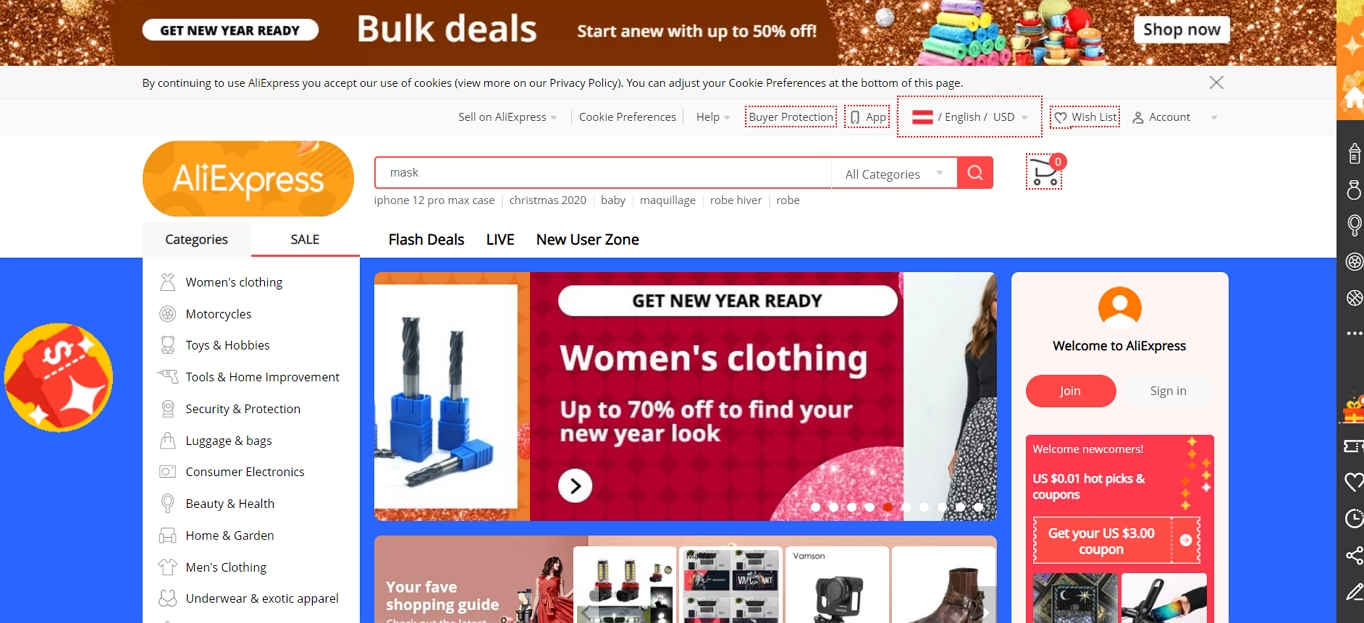
The biggest market of this kind is AliExpress. It’s a regular eCommerce marketplace by most standards, but it also allows you to establish relationships with merchants and offer their products as a dropshipper. Go there and look for products that are in tune with the research you’ve done, and also seem like something interesting-enough for your customer base to enjoy.
We recommend getting started with between 10-50 products. This will give you more than enough stuff to make your store complete and also not overwhelm you with what’s going on as you work with the store on a daily basis.
When you’re putting together a list of products, keep the following things in mind:
Make sure that the product is available for shipping in locations where your target audience is. Also, the lower the shipping costs, the better.
Check the shipping times and make sure they don’t exceed what you would consider acceptable (we leave deciding what’s acceptable and what isn’t to your judgment).
If possible, avoid brand name products (you don’t want to depend on being able to sell Adidas sneakers, for instance).
It’s a common practice for dropshipping stores to set their margins at around the 50% mark. Meaning, when looking for products to sell, focus on the ones that are half the price compared to what you want to sell them for.
As we mentioned earlier, having a list of 10-50 products is suitable for a start. We’ll use that list later on when importing the products to your actual online store.
4. Come Up With a Business Name and Register a Domain Name
Choosing a domain name for your store is undoubtedly the most fun part of the whole endeavor. People love to name things. Especially businesses.
However. The name you end up with can have a lot of significance for your future success and ability to market the business effectively. Here are the things to keep in mind when brainstorming a business name:
Pick a Name That’s Easy to Pronounce
Imagine yourself talking to someone over the phone and needing to mention the name of your store. Do you have to spell it out for the other person to understand?
If you do, the name is too complex. Go for something simple and easy to pronounce on the first go.
Pick a Name That’s Easy to Memorize
This relates to the previous point, somewhat. Apart from being easy to pronounce, your name also needs to be easy to memorize.
You can achieve this in a couple of ways. Going with a completely made-up word as your name is one solution (think “Google”). Alternatively, you can put together two words that do have real meanings but create something original when put next to each other (think “Face-book”).
Pick a Name That’s Brandable
Your name should be original enough so that people won’t mistake it for any other similar business.
For example, if you want to name your pizzeria “Pizza Den” but there’s another business in town called “Pizza Pan” then it’s not a good name.
Pick a Name That’s Short(ish)
Not longer than a combination of 2-3 words. Any longer and it’s going to be harder to remember and less brandable.
Don’t Use Any Special Characters Or Numbers
Also forget about dots, underscores, dashes, etc.
Pick a Name That is Available as a .com Domain
The .com is the most popular and most important domain name extension of the bunch. If you’re brainstorming a name, don’t go for something that doesn’t have a .com domain available.
Best Domain Name Generators – Still stuck with choosing a domain name? Check out this article of the best 15 domain name generators that can help you out.
Finally, it’s time to build an actual online store.
Here’s the best part: you can do it all on your own, there’s no professional help needed, and you don’t have to sacrifice the quality of the final outcome. Your online store is going to be just as functional and just as good-looking as if it was built by a pro.
To make that happen, we’re recommending using WooCommerce.
Note: Before you can start building your online store with WooCommerce, you first need to create a website. For this check out our step-by-step tutorial on how to build a website with WordPress.
The last piece of the puzzle when attempting to start an online store is accepting payments from customers.
By default, WooCommerce allows you to accept payments via PayPal. You don’t need to do much in order to enable this payment system either. You likely already took care of it during the initial WooCommerce setup.
That said, you can choose a different payment system, or even use a couple of alternative systems at the same time. One of the reasons for this might be that some of your customers will prefer specific payment methods over others. So the more of them you have integrated into your store, the more sales you’ll get.
Two of the most popular additional payment methods for WooCommerce are Stripe and Square. These are particularly good choices if you want to accept credit cards (which you surely do).
Both Stripe and Square are free to get started with. However, like with every payment method, there are additional fees imposed on every transaction made (it’s the same with PayPal), so just be aware of that.
Getting a new payment method installed in your eCommerce store is simple. Those payment systems are all delivered as WordPress plugins, so you can install them the same way you installed WooCommerce.
After that, each payment system comes with its own setup procedure. Most of the time, though, all you have to do is sign up for an account and verify your details.
7. Start Marketing Your Online Store
There are many different things you can do to get the word out about your store, but we’re going to focus on just four here – the four that are the most likely to work in 2022 and going forward.
Influencer Marketing
Influencer marketing is a relatively new way to promote your store. Most of it is done on Instagram.
The way it works is this:
Find people popular in your niche or recognizable for whatever reason.
Reach out to them and ask what their rates are for promoting products like yours. Also, pay attention to the size of their following and ask about the number of engagements they get under similar posts.
Agree on a run of two or three promotional posts, and send them your products.
Paid Ads
Paid ads basically don’t ever fail. If there’s a market for something, and you target that market with ads, you will get some sales.
The most popular platform for advertising your products is Google AdWords. Getting started with them is relatively easy, and Google has its own guides to take you through the initial steps.
Social Media Marketing
While Instagram certainly is the most on-trend social media network of today, this doesn’t mean that it’s the only place where you should promote your store.
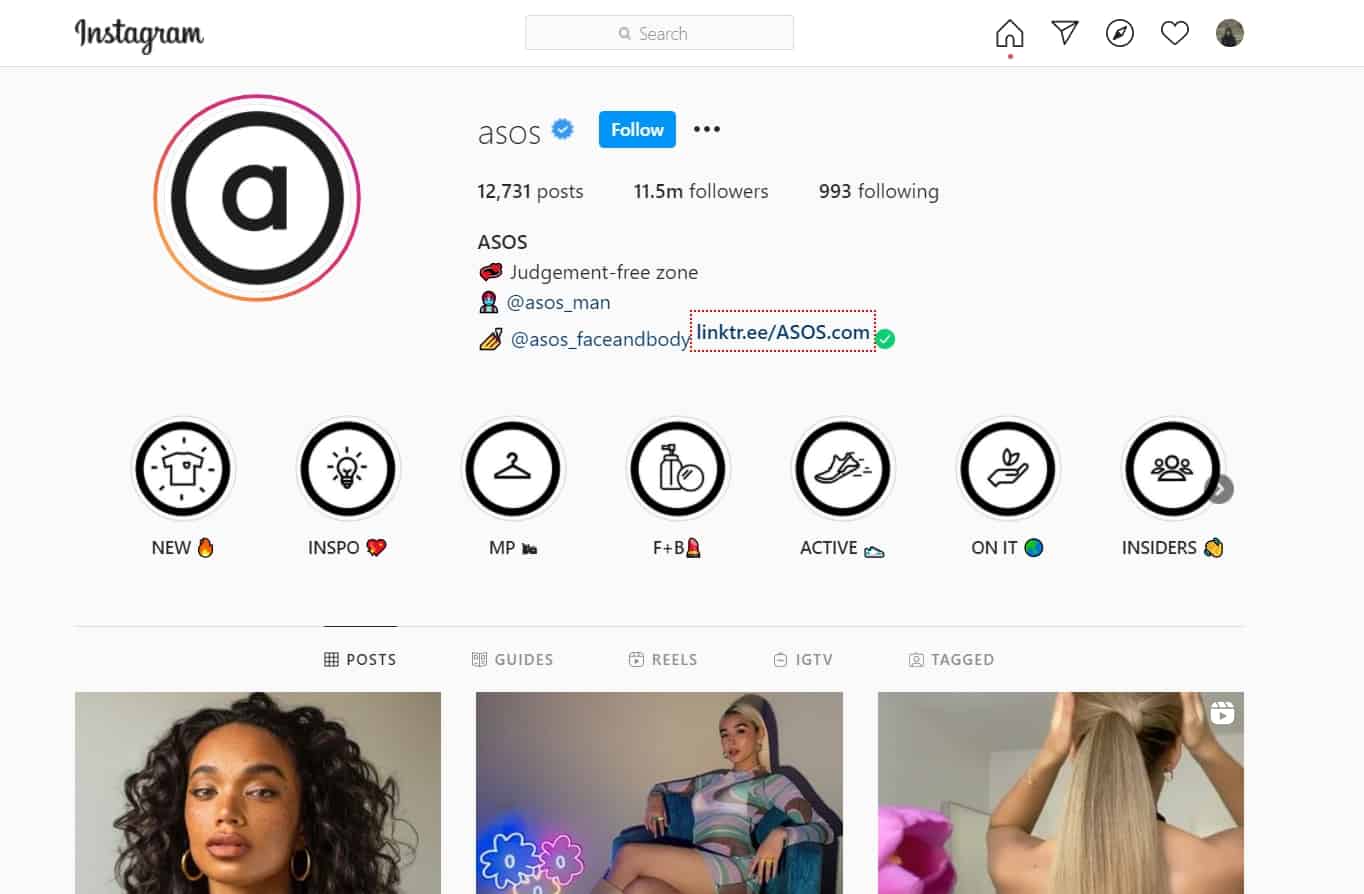
Online store ASOS on Instagram
In fact, you should be present in all the places where your customers are likely to hang out. This, in the modern-day, means most of the popular social media networks. Or, at the very minimum, the top ones like Facebook, Twitter, and optionally Pinterest (if your customers use it).
Your approach to all these networks will be similar, but the goals and the way you construct your messages will be different.
The first thing you should do is research what your competition is doing and how they go about promoting their stores. Take note of their strategies and tactics, and see what you can adapt to your situation. Chiefly, pay attention to:
the type of messages they post
the posting frequency
how often they promote their products directly
what’s their general voice and how their messages make you feel
Next, set your own goals as to what you want to achieve through social media.
Most commonly, those goals should be building brand awareness among customers, and only occasionally promoting your products, and trying to generate direct sales. If you push your stuff too much, you’ll alienate people quickly.
The next step is setting a publication calendar in place and preparing some social media posts in advance. You can then publish those posts with the help of tools like Buffer.
Content Marketing and SEO
Nowadays, content marketing and SEO are the most effective methods to promote any website (including eCommerce stores).
The idea behind content marketing is simple: you give people insights on topics related to your business and thus generate interest in what you have to offer.
For example, if your store sells winter socks, then you can offer people advice on things like how to pick ski socks. You can deliver that advice in the form of a simple blog post. As people read your content, they also get introduced to your store and the socks that you have in your catalog.
The same principle can be adapted to any market or niche. Find out what people want to know and then create content that delivers that info to them.
When doing so, optimize your content so that it’s more discoverable via Google. It’s reported that Google is responsible for 94% of total organic traffic on the web.
When you use WordPress to write content and publish them online, you usually heard the term WordPress permalinks. This term is critical to learn from the SEO point of view for every user. This is commonly known as a link that helps you to reach a specific section of the content.
In this post, we try to bring you Complete comprehensive content about WordPress Permalinks. What are they? How do they Work? How should you implement them? And any more. But before getting into deep, let us know What WordPress Permalinks actually are?
What are WordPress Permalinks?
As per the official definition provided by WordPress,” Permalinks are the permanent URLs to your individual weblog posts, as well as categories and other lists of weblog postings.” Whether your website has archive pages, posts, or even 404 error pages, all of them have their own WordPress permalinks.
Suppose your domain/homepage is www. example.com, then the archive pages or your blog pages would be www.example.com/blog to understand this term better.
Or if your website has other pages such as contact us, home, or about us page, then the WordPress permalinks of these pages would be as follows:
Contact us – www.example.com/contactus
Home – www.example.com/home
About us – www.example.com/about-us
Or Www.example.com/?p=123
These both URLs are the types of WordPress permalinks you have which we will discuss later. In addition, whenever you post content on your blog, each post has its own permalink. It becomes accessible due to your theme template files, which have a template tag that fetches the Post URL and converts them into clickable links.
And Here the WordPress comes into play, and it uses these clickable links to use in your blog listing by showing them within an <a> element.
Some other terms related to WordPress Permalinks
To continue this post, we would like to let you know about the meaning of some more terms related to WordPress permalinks, and it will be easy for you to understand the difference between them. As we have already mentioned above, WordPress permalinks are the complete links to the post or any page of a website.
And the slugs are like the final, ready to use and unique part of WordPress permalinks. For example, the permalink of the About us page is www. example.com/about-us, then the slug would be about-us. These are generated by WordPress automatically based on the various parameters that you have in your permalink settings.
And if you are not happy about your default WordPress permalinks, you have the option to customize it as per your choice, which we will see in the later section of this post.
Types of WordPress Permalinks
There are generally three different types of permalinks are available.
Plain or Ugly WordPress Permalinks
Pretty WordPressPermalinks
Plain or Ugly WordPress permalinks: Plain or ugly permalinks are the links WordPress assigns by default without any customization or alterations. It usually looks like the example given below:
1
<strong>http://example.com/?p=N</strong>
Each element in the permalink given above have its own meaning, such as N denotes the Post ID number. To your surprise, these links work fine on all servers, but the only downside of plain permalinks is that it doesn’t look nice like other options available.
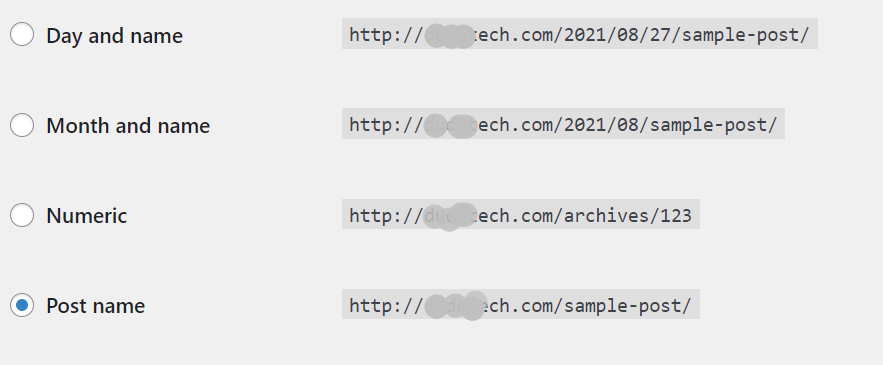
Pretty WordPress Permalinks: A well-structured, easy to read, understand, and SEO-friendly URL termed Pretty WordPress permalinks. You can easily enable them in your WordPress settings. Let us take some examples to understand better how they are different from Ugly permalinks.
From the above-mentioned examples, you can easily see the main difference between them. In the ugly permalink, it shows you the P variable with the post id number. Whereas in the pretty WordPress permalink, you can see an easy-to-understand and read post slug.
WordPress has provided you with four formats that you can pick from permalink settings to make it more informative and structured. Just look out the image below and see all the options.
WordPress permalinks: Pretty permalinks
But another thing you must keep in mind is that you are not limited to use only the above pretty WordPress permalinks settings. WordPress provides you customization options by using structure tags.
Why you need to use Pretty WordPress permalinks?
Pretty WordPress Permalinks not just look good and easy to remember, but they have two more benefits: it is SEO friendly, and another enhances UX. You might have curious to know how Pretty URLs helps in SEO benefits? Well, search engines use your URL to determine what your page or content page is all about. And if they found your permalink related to the content or page, the search engines find it genuine and legitimate to give them priority in their search engine rankings.
In terms of UX(User Experience), Pretty WordPress permalinks not just help search engines understand the post or content it links, but a user can also easily read and understand the post it links to. For example: If you about us have URL like example.com/?p=245, it is tough to determine and remember such URLs rather than example.com/about-us.
How to implement better Permalinks, Slugs, and SEO?
As we have already mentioned in the above sections about the Slugs, these are the last part of your page or post URL. slot automaty online And if you have already gone through the WordPress permalink settings page, the title of the page or content is used in Url. For example, if your content is about “How to monetize your blog?”, it will be automatically generated as an example.com/how-to-monetize-your-blog/.
From the above example, you can see that anyone can easily tell what the content will be all about by looking at the URL. In addition, search engines can easily determine these URLs as pretty WordPress permalinks that have focus keywords.
But it is not enough; you can even improve the slugs for better results by following some tips such as your slug should be not soo lengthy, and it should be long enough to include your focus keyword and be easy to remember.
For example, if a post/page has a Pretty link as ” How to monetize your blog,” it might be better if you use slug as Monetize-blog. And if your website has multiple posts on the same focus keyword and you want to differentiate each one with a different slug. For example, if you have another content on the same focus keyword, ” monetize your blog,” with a different topic such as What are the benefits of monetizing your blog?
In this case, you could use “monetize-your-blog–benefits,” and the pretty permalink would be example.com/monetize-your-blog.
Slugs and User Experience
After knowing the SEO benefits of WordPress, pretty permalinks, now we shall talk about its User Experience benefits (UX).
As per Jacob Nielsen, the following points have been mentioned about what a website must have.
Easy to learn and type URLs
Easy to remember and spell Domain names
Permalink should not change
Short and clean URLs
Urls should not get hacked or provide security from all the malware or hackers attacks.
In addition to the above worth points, A permalink should never be either removed or altered in any case; it has been shared and used in multiple ways on the internet that provided you credibility. Another point to remember is that an URL must be clean and easy to understand so that even a non-expert user can easily understand and remember it.
No doubt, it is not impossible to edit or alter your permalink completely of a post that you have already published. But it is not a good practice and can potentially harm your website DA and even search engine rankings. This is because the original permalink may have been shared on the internet.
Still, if you need to make some edits to change your old permalink with a new one completely, make sure you practice the WordPress directing methods.
How to setup Permalink in your WordPress Website?
WordPress has provided you with multiple options to change the WordPress permalinks and choose whatever you want your permalink should look like.
You can change WordPress permalinks as
As soon as you setup your website, you can change your permalink settings to pretty permalinks.
You have the option to edit or alter slugs for each posts, when you are writing a post and editing them.
You can use WordPress best redirecting practices to point your old/outdated permalink to the new one.
You can even compose or create your own plugin to change the way permalink are designed.
You have the option to change the permalink structure for tages and categories.
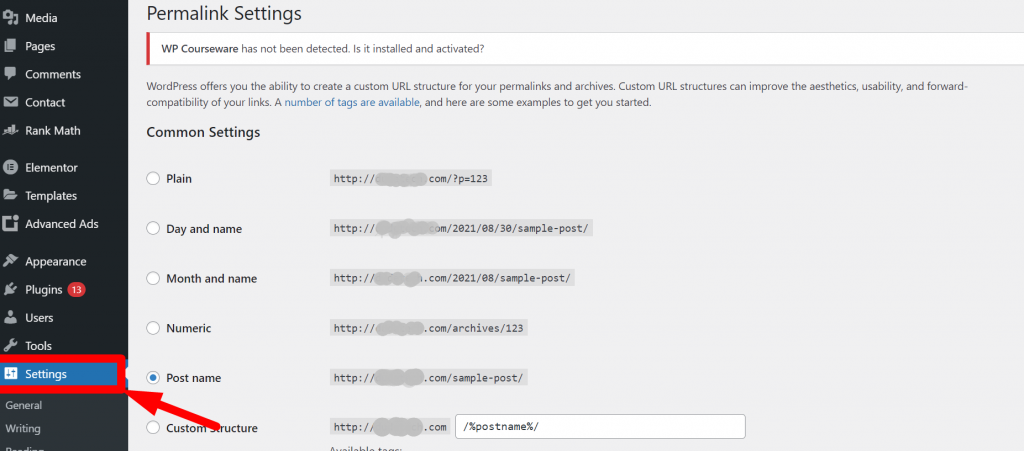
WordPress Permalink Settings Page
After you set up your website, the first thing you need to do is to configure your WordPress permalinks settings page. Go to your WordPress Dashboard > Settings > Permalinks.
WordPress Permalink Settings page
Common Settings are defined as:
Plain: This option only uses post ID in the URL. However, it can be easily read by browsers but it won’t work for humans like us and the search engines. e.g- yoursite.com/?p=123.
Day and Name: This option uses the date of posts that publised on and the name or title of the post. In the above picture it is showing as: yourwebsite.com/2022/08/30/sample-post/.
Month and Name: Similar too Day and Name, this option uses the Month and Name of the post that you publish. e.g- yourwebsite.com/2022/08/sample-post/.
Numeric: Just like the Plain option, it also uses the post ID. It can alsoo be easily readable by the browsers but won’t work for humans like us. e.g- yourwebsite.com/archives/123.
Post name: Unlike other options that has post ID,month or date, this option uses your the name of the post in the slug. e.g- yourwebsite.com/sample-post/
Custom structure: With this option, you can create your custom structure. You can use certain tags that help you to grab the information from your that will doesn’t change in near future.
Optional Settings
Apart from the above permalink settings that you find, there is an optional settings field also provided that lets you set a custom structure for your category and tag archives.
If you like, you may enter custom structures for your category and tag URLs here. For example, using topics as your category base would make your category links like http://example.com/topics/uncategorized/. If you leave these blank, the defaults will be used.
How can you edit or Change Permalinks and Slugs for each pages and post?
After successfully setting up pretty permalinks on your website, the next thing you need to do is to edit your Pretty permalinks to get better results and optimize as per the search engine and users’ standards.
To optimize WordPress permalinks and slugs of each page and post of your website. It is highly recommended that you must practice this while editing or writing your content. If you have a directly edited slug of any content or page, you have unintentionally also changed its URL. And if the old link was shared anywhere on the internet by your users will be no longer exist and return a 404 error page.
Hence, to carefully carry out the same process, you need to go to your WordPress dashboard > posts > select the post you want to edit.
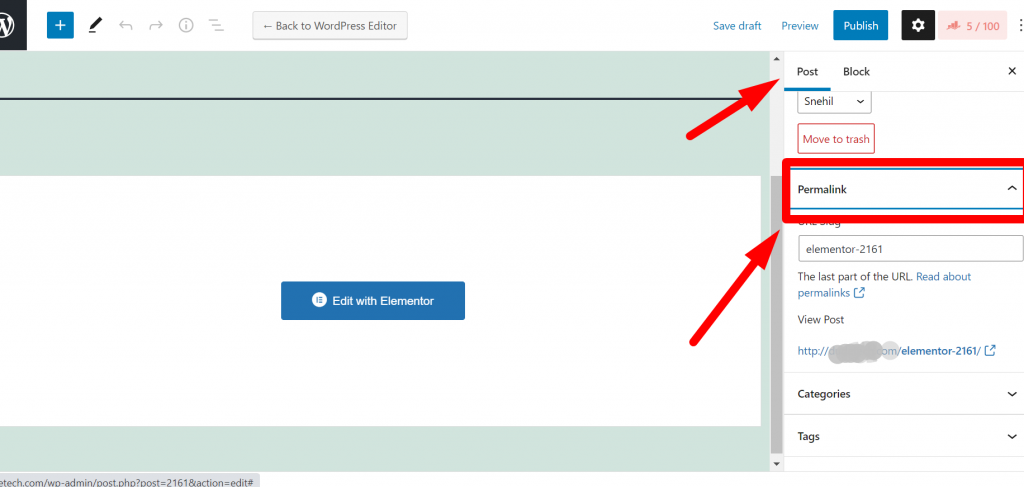
After that, on the right-hand side of the post creating a screen, you will find the permalink option under the post tab as shown in the picture below:
from the above image, you can see in the post-editing screen on the right-hand side a permalink option is provided under the post section. When you click on it, you fill an automatically generated slug displayed in the URL slug.
Now you can edit this section to make your permalink short, clear, and SEO-friendly that focuses on your target keyword. But before editing it, make sure you have copied the old slug in your notepad or somewhere else so that when you set up redirecting (In case you are editing the old content), the old link cab used.
After editing, now click on the update button to save the changes and hit on Publish button to make it live. But one thing must keep in mind is that you must not forget that if you have to make changes in the slug of an existing post, it could result in a 404 Error for the users who shared the original link. Hence after completion of editing, do not forget to set up redirection.
Changing WordPress Permalinks settings for Archive pages
If you are looking for WordPress permalinks settings, especially for individual archive pages, you need to change the “category” or “tag” in the permalink settings page. However, you also have an option to change the slug of each tag or category.
How to change slugs for Tags and Categories?
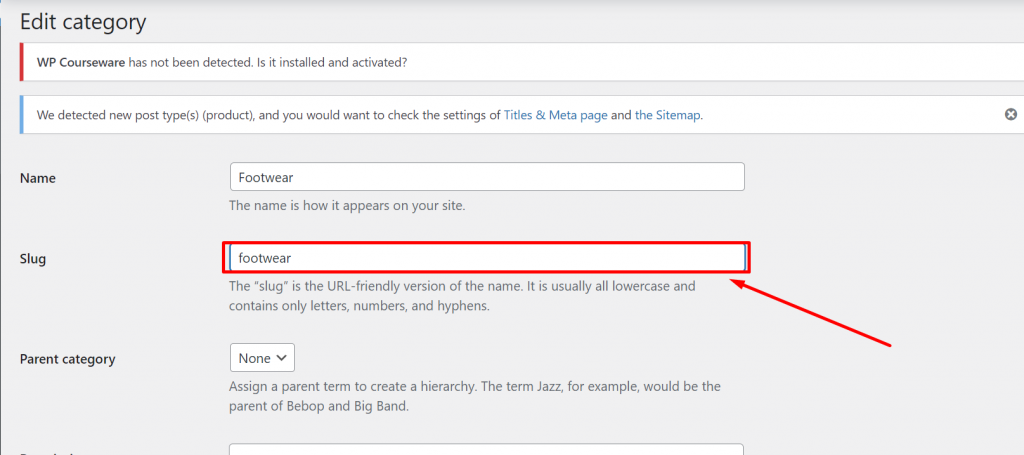
To change the slugs for tags and categories, you need to go to your WordPress dashboard > Posts > categories or Posts> Tags. Look out for the tags or category that you want to alter or chance and click on it. Now type in a slug if you want to, or else, the WordPress will automatically generate and assign one, per the tag or category.
However, it is not necessary to have this, it only makes sense when you have categories or tags, and if you choose it for later, you are required to complete the whole redirection.
WordPress permalink settings in Ecoomerce
If you are looking to change WordPress permalinks settings for an eCommerce website, if you are using the woo-commerce plugin, then it creates custom post types and all the taxonomies by itself, and all these permalinks are generated by default.
However, you can still make changes to the permalink and slugs for every custom post and taxonomy.
Changing Product Category, Tag, and Attribute Permalinks
To change product category, tag, and attribute permalinks, you can go either by using slug or the structure. However, both these works are almost similar for regular tags and categories.
Editing Product category Slug
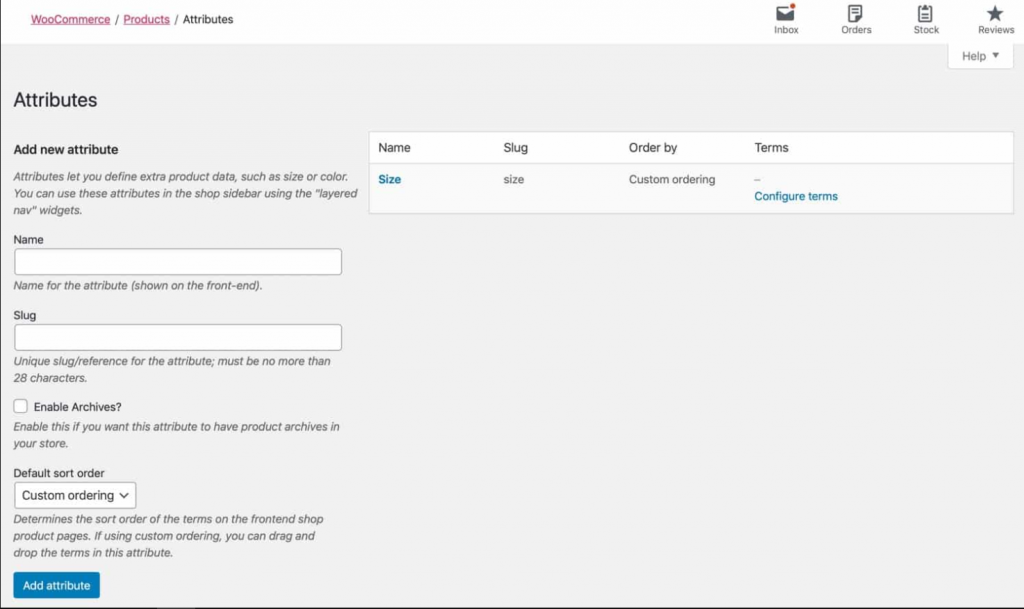
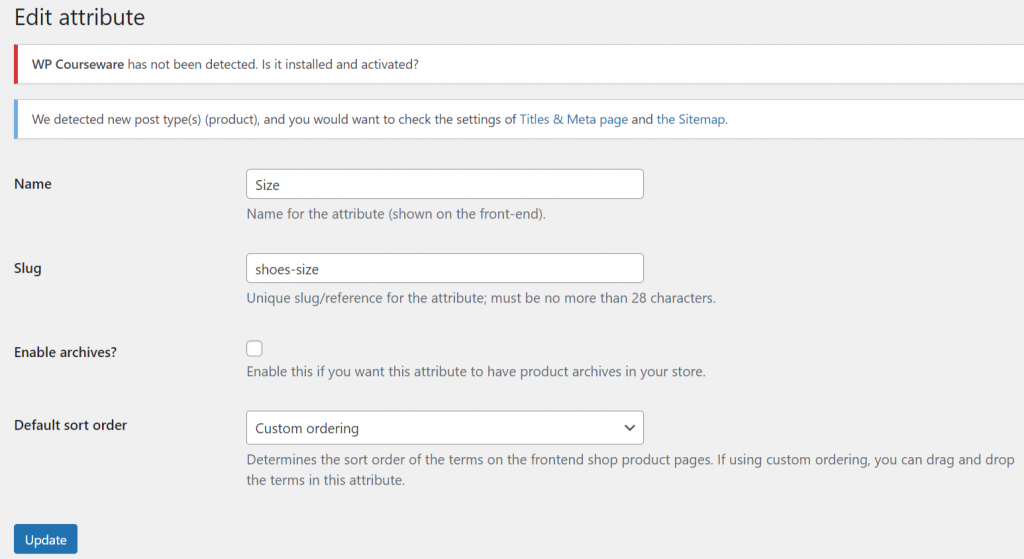
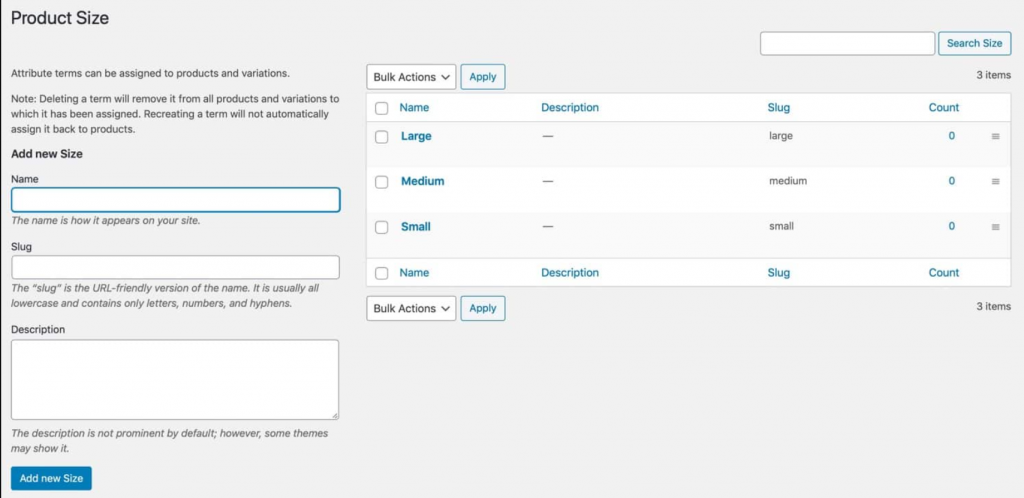
For editing the product category slug, you need to go to your Products > Attributes. Still, before editing your attribute, you must keep in mind that it is a whole different process, and you have to also deal with attribute terms too.
Editing Permalink structure
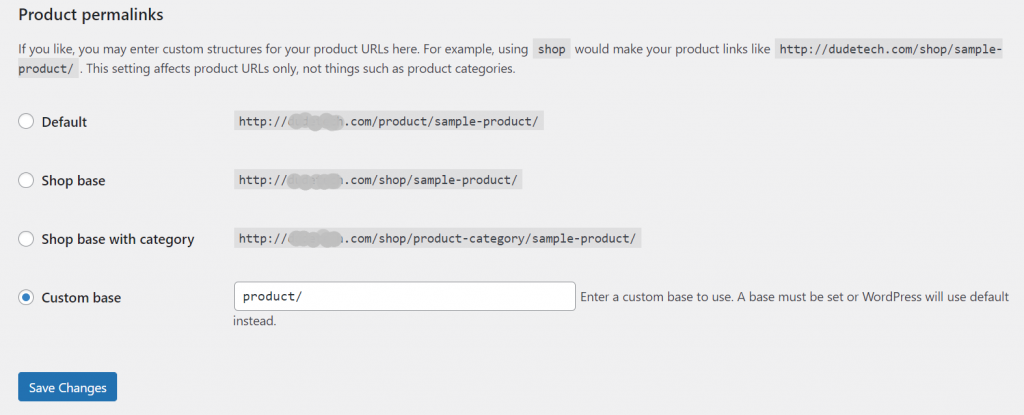
For editing the Permalink structure, you need to go to your Dashboard Settings > Permalinks and scroll down for the Optional field, where you will find more Woocommerce permalink options. And you can edit the permalink settings for woo-commerce custom taxonomies.
Product cateogory base: By default it is set as product-category but it can be changed as per the terminologies you use in your online store. But one thing you must ensure that whatever you make amendments in your settings, it should not clash with your settings that you have set up for regular categories.
Product tag base: By default it is set as product-tag, but it can also be changed as per your choice. And ensure that it should not also clash with your settings that you have set up for regular post tags.
Product attribute base: Apart from the above two taxonomies, it works differently by having a different structure. The product you add it will by default asigned a slug for each and every attribute name with attributes itself.
Suppose you wish to make some changes in the slug for every tag or category. It would help if you went to your Product section followed by categories or Tags and make changes the way you do with categories and tags.
If you want to edit the slug for an individual category or tag, go to Products > Categories (or Products > Tags) and edit these in the same way you would post tags and categories.
While editing or creating a new attribute, all the procedures will be the same, just as you would for editing categories and tags. i.e., you use the slug option to set up the slug. Or, in another way, if you’re looking to edit the slug for an existing attribute, you need to click on the Edit link just below the attribute you would like to edit.
After completing editing attributes, the find thing you need to do is to click on the Update button to save your changes.
If you are looking to edit or make some changes in the Attribute term slugs, go to attribute > and click on configure terms link just beneath the attribute. You will find a complete list of the terms for that particular attribute.
Now, you have the option to edit the slug for each term that is being listed, just like you edit for tags and categories.
How to change WordPress permalinks of products?
If you want to edit permalinks of products, go to your WordPress Dashboard > Settings > Permalinks and Lookout for Product Permalinks filed.
When you look at the product permalinks section, you will find the following fields to choose from:
Default: These slug will be show if you have already activated pretty permalinks, and it will use slug of each product by default.
Shop base: You will be using shop instead of product in the slug.
Shop base with category: In addition to shop you will be also using category nam e of the product into the URL.
Custom base: This section let you customize your own permalink structure, anyhow. And another important thing you must note that, you simply cannot left or remove the base completely.
When you are done with opting for the suitable option as per your requirement, the next thing you need to do is to click on the save changes button to save your changes.
Changing WordPress Permalinks Using WordPress plugins
If you found all these permalink settings quite tedious, WordPress has always provided you with alternative solutions in terms of WordPress plugins. Using a third-party WordPress plugin will help you out to make changes or editing your permalinks over what WordPress has provided you with default permalink settings options.
Permalink Manager Plugin is considered one of the most advanced and highly rated WordPress permalinks editor plugins that let you customize and control the structures of URLs for all the pages, custom posts, and posts. And when a new custom permalink is active, the errors such as 404 and copy content errors will be avoided by automatically redirecting them to the new custom permalink you have defined.
The Custom WordPress Permalinks plugins are best suitable for customizing your URLs of any post, page, category, or tag the way want to. And you do not need to worry about 404 errors; all the old WordPress permalinks will be redirected to the new address without any issue.
Changing WordPress permainks in phpMyAdmin
If you have basic knowledge of WordPress files and using phpMyAdmin, then you can do almost anything through it, including editing permalinks. This comes to the handy and best alternative solution when there is something issue with your WordPress dashboard, and you are unable to access it through your WordPress permalinks Settings page.
But before that, you must make a complete backup of all the files and databases to avoid any mishap during permalink editing.
The First step is to access your phpMyadmin by logging in to your Cpanel by typing your database username and password. At the top of the page, you can see the Databases option. Click on it to open and select the database you want to work with.
Select the wp_options as shown in the picture above and look out for the permalink_structure.
Select the wp_options table and find the permalink_structure entry in the option_name column. You might need to navigate beyond the first page of entries.
As shown in the above picture, you can see on the left side of permalink_structre; an Edit link has been provided. Click on it to add the permalink structure that you wish to use.
Click the Edit link on the left for that entry, then under the option_value field, add the permalink structure you want to use. Use the tags that we identified earlier for use in the Permalinks settings screen.
Once done with editing, You can click on the Go button to save your WordPress permalinks.
How to change WordPress Permalinks in Images?
To your surprise, images that you use in your post or content have their own permalinks. And when you upload any media file, such as images or videos, to your website, it will generate multiple links for each media file.
The first one is the link to the original image, and another is the links created when you set media sie settings.
How it created Link to the origal image or the image you upload?
As we have already mentioned that whenever you upload an image or any media, WordPress will create a unique link to the file it is saved on your server. You must have noticed a path named wp-content/uploads while configuring server files.
The image files or the pathname consists mainly of the date on which the image was uploaded. It helps to avoid conflict between the images. If you have uploaded an image of the same file name but on a different date, it won’t create any big issue.
For example, if you have uploaded an image with the name Image001.jpg on a month, say June 2021, the WordPress link will generate as example.com/wp-content/uploads/06/Image002.jpg where the number 06 in the link indicates the month of file upload.
It also works the same way with other media files or documents. For example, example.com/wp-content/uploads/06/emploees.doc. And you might have thought, what if you upload a file with the same name in the same month. Well, WordPress resolve this situation by adding up a number to the end of the file name.
So whenever you upload another file, either image001.jpg or emploees.doc, again in the same month, the file will be saved with the name image001-1.jpg and employees-1.doc.
If you wish to check out the working condition of the original file that you have uploaded or want to link to the original file, check out the procedure how you can find the link.
To find the link to the file, you need to go to your WordPress Dashboard > Media > Library and click on the file that you want to know its link to. A pop-up editing image window will open and showing the File URL and other file details on the right side.
WordPress Permalinks for different sized images or any media files
We have already mentioned in the previous section of this post that WordPress also creates permalinks for the images based on their file size. Whenever you set a file size for any image, a permalink will be created automatically. To do this, you need to go to your WordPress dashboard> Settings > Media.
So whenever you upload an image with a large file size exceeding the large value settings, WordPress will automatically create copies with three different file sizes per the media settings, i.e., Large, Medium, and thumbnail.
However, WordPress won’t name these files as per their different sizes; a user may change its name as per their requirement shortly. Hence, alternatively, WordPress uses the dimension as in the file name and store them at the same place where the original image is being located. i.e in the wp-content/uploads.
To find the URL of all the images of different sizes, the easiest method will be by accessing the WordPress files via the FTP client and find out all the images you have uploaded in a particular month.
For example, let us suppose I have uploaded an image with the file name Image001.jpg. The WordPress will create a copy of the same file with different file sizes using the media settings as follows:-150×150.jpg
Image001-150×150.jpg
Image001-300×300.jpg
Image001-1024×1024.jpg
Redirecting WordPress Permalinks
In the previous sections, we have discussed how you can edit your slug or change your WordPress permalinks. And we have also mentioned the consequences that you may face during editing WordPress permalinks. i.e., your users might face a 404 error page, or it can also affect your SEO.
However, to avoid this or to fix this problem, the best thing you can do is to redirect your old permalink or URLs to the new ones that you have edited or created.
How to Redirect each and every Pages or Posts that you have created?
Redirecting every page or post from the old permalink to the new one that you have edited or created, the first and the most important step you need to do is to set up a redirecting rule.
If you’re with WPOven, You can do redirecting by following these simple steps.
Redirects are server-side rules to handle incoming requests and redirect them for your visitors. The WPOven redirect tool redirects any incoming request for a Domain that is not added to your WPOven dashboard and redirects it to the destination set by you.
Step 1 : Access the Redirect section.
The redirect section can be accessed from your WPOven dashboard, from the ‘Server‘ section. You need to select the server to which you want the request to redirect. Now in this section, you will notice the ‘Redirects’ tab. Click on the ‘Redirects‘ tab to set up the redirect rule.
Step 2 :Create a Redirect.
Once you open the ‘Redirects‘ section, you will see the Redirect Manager. Here you will be able to see all the redirect rules that you have set up for this server.
Click on the ‘New Redirect‘ button to add a new redirection rule. Here you will see a form that looks like the form shown below.
The 2 fields for the form :
Source : This field will take the regular expression for the URL you wish to redirect from. Also note that the domain for this URL should not already be added to your WPOven dashboard, otherwise the redirection will not work. The path entered should be a PCRE/PHP regular expression (you can learn about Regular expressions here) and it should not include any starting or ending delimiters.For Example, if you wish to redirect themes.wpoven.com to blog.wpoven.com, you would enter the source field as : ^(.*?)themes.wpoven.com/$
The ‘^’ indicates the starting of the regular expression and ‘$’ the end.
‘(.*?)’ Symbol catches the protocol of the request, i.e http:// or https://
Destination : Here we will enter the destination path where the visitor will be redirect to,If you wish to add the matched variables from the regular expression from the source field, you can enter them as $1, $2, $3 …..For example, continuing with the previous example, the destination URL for the Redirect to blog.wpoven.com, would be : $1blog.wpoven.com
Where $1 is the matched expression from the symbol ‘(.*?)’
Once you have entered both fields, press the ‘Add Redirect’ button to save the redirect. You should now be able to see your redirect on the Redirect Manager page for the server. To edit an already existing Redirect, you can click on the ‘Manage’ button from the Redirect manager page.
In case you are not able to set up the redirect or require any assistance with it, please feel free to contact our support team. They will be happy to help you.
How to redirect Archive pages?
If you like to explore more easy and simple alternatives for WordPress permalinks redirection, you can go for the WordPress redirection plugin. This is an ultimate redirection tool that helps you out to redirect URLs easily.
But before using that, you need first to enable the Regex function. To enable it, Go to your WordPress dashboard > Tools > Redirection > Add new redirection.
Now on the right side, you have URL options to choose from. polskie gry kasyno And Select URL Options/Regex from the Dropdown list.
In the Source URL field, You can enter ^(.*?)themes.wpoven.com/$. The entry for Target URL needs to take the source $1blog.wpoven.com. This will exactly be the way we have done through WPOven Dashboard.
What if WordPress Permalinks are not Working as planned?
Sometimes, even after taking all the necessary steps, you might still found some issues with WordPress Permalinks, and it will not work as planned. To troubleshoot such problems, you can follow our recommended solution:
At times, When you register a new post type or taxonomy, and it doesn’t work as expected. You do not need to worry about it. You can resolve this issue by Got to your WordPress dashboard > Settings > permalinks and refresh settings. And even you do not need to make certain changes to it or click on the save changes button. It can work even you open the Permalink Settings page once.
This happens because WordPress cannot determine whether a custom post type or taxonomy means there is a change in permalink settings.
And even the issue persists, you can also check out these alternate solutions.
Check your Permalink settings, that you have done it correctly or not. Ensure that you have not missed anything or typed the wrong data.
Check out whether you have typed the correct URL in the browser or not.
Check is there any issue with your redirection plugin if you are using a redirection plugin. fortuna zakłady online opinie And cross verify all its settings too.
Examine that you have made any changes to the slug of any post you have created and edit if required.
Try clearing your website cache and check if the issues persists.
verify via phpmyadmin and edit WordPress permalinks if requried.
Summary
WordPress permalinks can do wonders for your WordPress website if you know how to configure and properly implement them. Not just can it enhance user experience, it has the potential to boost your search engine rankings too.
Hence, you add quality information and help you to boost up your website performance. We tried to bring you detailed and comprehensive material on WordPress Permalinks. We have tried to cover all the aspects of WordPress permalinks that you can use in your Website. Whether it is for e-commerce websites, optimizing images, posts, or pages.
If you have anything worth mentioning about more WordPress permalinks, please share your valuable ideas in the comment section below. We love to hear from you.
Frequently Asked Questions
What are permalinks in WordPress?
Permalinks are the permanent URLs to your individual weblog posts, as well as categories and other lists of weblog postings.” Whether your website has archive pages, posts, or even 404 error pages, all they live their own WordPress permalinks.
Where do I find permalinks in WordPress?
You can find the WordPress permalink in the editor section of pages or posts. Usually located on the right-hand side of the editor where a default permalink can be easily shown.
Can I change permalinks in WordPress?
In short, Yes, you can change permalinks in WordPress after or before published the post or page. However, it is not recommended to edit or change the WordPress permalinks after publishing your content or making your page live. It can lead to a 404 error, and if the post has been shared multiple times, there are chances that your backlinks will be lost.
During your research into website design and development, you might have come across two terms used to describe types of websites: “static” and “dynamic.”
If you’re building your own website, opting for a static or a dynamic website is one of the first major decisions you’ll need to make, since it will determine how your web pages are stored and delivered to visitors in their browsers.
To help you understand the difference, let’s break down what it means for a website to be static or dynamic, and discuss the pros and cons of each approach. Finally, we’ll share some examples of popular dynamic websites to give you a better sense of what they can do.
Static vs. Dynamic Website
The difference between static websites and dynamic websites is that static websites appear the same for every user that accesses them and only change when a developer modifies the source files, whereas dynamic websites can present different information to different visitors.
No matter how complex a website appears to be, at its core a web page is just an HTML file displayed in a web browser. When you visit a website, your browser sends a request to the web server that hosts the website, and the server responds by sending back an HTML file (along with some other related files). Your browser processes this HTML file and shows it to you as a page.
Ultimately, both static and dynamic websites generate HTML files, but what makes a website “static” versus “dynamic” depends on how the server creates this HTML file before sending it to you. To understand the difference, let’s first unpack how static websites work.
What is a static website?
A static website is made up of a fixed number of pre-built files stored on a web server. These files are written in HTML, CSS, and JavaScript, which are called “client-side” languages because they execute in the user’s web browser. When a user requests a page from the server with a URL, the server returns the HTML file that is specified by the URL and any accompanying CSS and/or JavaScript files.
During this exchange, the web server does not alter the files before they’re shipped to the user, so the web page will look the exact same to everyone who requests it. The content is “static” — the only way to change how the website looks is by manually changing the content of the files.
This doesn’t mean that static websites can’t be interactive or engaging. They can still have clickable links and buttons, images and video, CTAs, forms, digital downloads, and animations powered by CSS or JavaScript. With enough skill, you can even get a static website to look pretty nice. But, a static site will always look the same to everyone.
Common examples of static websites include resume websites, portfolio websites, brochure websites, one-off landing pages, and other informational or read-only sites. These websites are small (three to four pages or fewer), limited in content, and don’t require personalized content or frequent updates.
Static Website Advantages
Most benefits of static websites stem from their simplicity. Static sites are the easiest kind of site to build and maintain from scratch. If you want to launch a basic website quickly and cheaply, static sites are a solid option. With knowledge of HTML and CSS, you can code up a decent one without too much effort or cost.
Static websites also tend to be faster than dynamic websites on the user’s end. This is because pages on static websites are already built and require minimal back-end processing. The server only needs to retrieve the requested files and deliver them to the client. Static websites are also easier to cache due to lack of variation in content. Site speed, also called website performance, is crucial for a positive user experience and also affects search engine ranking.
Static Website Disadvantages
As you can probably guess, a static website isn’t the best option in many cases. The most apparent issue is scalability: Any time you want to make a site-wide content update, like changing the header of your pages, you’ll have to alter each individual HTML file. Plus, whenever you want to add a new page, you’ll have to manually create a new HTML file. For large websites, this simply isn’t practical.
Another disadvantage of static websites is lack of personalization. If you can’t tailor content to visitors, you might miss an opportunity to create a more engaging experience for visitors. Sure, a static site can display information about your business, but what if you could show visitors different information based on, say, their location? For that, you need a dynamic site.
Finally, there are many types of sites that just aren’t possible to build statically. For instance, ecommerce websites typically let users add products to their carts and check out, functions you can’t do with a static site unless you rely on third-party tools.
For these reasons, most websites that you use today are built dynamically. Next, let’s explore what that means.
What is a dynamic website?
Unlike a static website that displays the same content to all visitors in the same format, a dynamic website presents different information to different visitors. The content that a visitor sees can be determined by several factors, such as their location, local time, settings and preferences, and/or actions they’re taken on the website (e.g., shopping habits), making for a more tailored and interactive experience.
To achieve greater flexibility on the front end, dynamic websites require more complexity on the back end. These websites don’t store each page as its own HTML file. Instead, web servers build pages “on-the-fly” — when the user requests a page, the server pulls information from one or multiple databases and constructs an HTML file custom-built for the client. Once the page is built, the HTML file is shipped back to the user’s browser.
To build pages on the back end, dynamic websites employ server-side scripting languages like PHP, Python, Ruby, or server-side JavaScript, in addition to client-side languages (HTML, CSS, and JavaScript). Depending on the amount of data that is being pulled to construct the page, this process can get quite complex. However, the user doesn’t see any of this process — they only see the web page loaded in the browser, same as with static sites.
These days, most websites you use employ at least some dynamic practices. Online stores, social media sites, membership sites, news sites, publishing sites, blogs, and web applications all rely on dynamic content to some degree.
For example, consider an ecommerce site whose home page recommends products based on what they think you’ll want to buy. This means that every visitor will see a slightly different home page. Of course, it wouldn’t make sense to hard-code a page for each person and store it on the server. Instead, server-side code works to determine what content you should see, fetch that content from various databases, and build a page from it.
Other use cases for dynamic content include changing the page language based on the user’s location or settings, displaying a user’s previous orders from your website after they’ve signed in, and gating certain content on your site according to a user’s membership status.
Dynamic Website Advantages
We’ve already touched on the primary advantage of dynamic websites: They enable you to personalize your website’s content to each visitor, which means a more engaging user experience resulting in more conversions and purchases.
Beyond personalization, server-side scripting is very powerful and unlocks a myriad of possibilities for functionality. Dynamic code allows us to build web applications, SaaS software, and rich experiences that simply aren’t possible with a static approach.
It’s also much easier to make site-wide updates on dynamic websites. Administrators can quickly and easily make sweeping changes on their site, rather than updating the source code for each HTML file. On websites that frequently update content and appearance to keep up with their industries, this is a necessity.
Lastly, dynamic websites are more scalable than static websites, as the server does not store a fixed number of pages. Instead, the server constructs a page when it is needed. Going back to our ecommerce site example, say you want to add several new products to your site. Instead of building separate product pages in HTML, you just need to store product information in a database. Server-side scripts can pull this data to construct the product page automatically.
Dynamic Website Disadvantages
Since dynamic websites are more complex than static websites, they require much more time, effort, and know-how to create from scratch. If you don’t have the technical expertise to build and maintain a dynamic website, you can invest in a developer or development team.
Alternatively, you can use a website builder or a content management system (CMS) to handle the technical side of things, so you can place more focus on your site’s content and design. For example, WordPress works by building its pages dynamically using the server-side language PHP.
One other tradeoff of using a dynamic website is a potential drop in performance. Dynamic websites do more processing on the back end in order to deliver pages to visitors, which can affect load time. There are ways to optimize your site speed, and website building software has improved in this area. Still, speed is definitely something to keep in mind when managing a dynamic site, since delays of fractions of a second can cause higher bounce rates.
Dynamic Website Examples
Wayfair (Dynamic Ecommerce Website)
Twitter (Dynamic Social Media Website)
Netflix (Dynamic Entertainment Website)
HubSpot (Dynamic SaaS Website)
The New York Times (Dynamic News Website)
Most websites you use today are likely dynamic ones. To wrap up this post, let’s look at five popular examples of dynamic websites.
Anyone who uses Wayfair knows the company tailors its shopping experience to customers. Its dynamic website allows you to view products deemed most relevant based on your browsing and purchases.
Given that over 300,000 tweets are published per minute, I can’t think of a better use for a dynamic website. Twitter’s dynamic build allows its interface to change in real time with new tweets.
Netflix displays TV and movie recommendations based on your viewing habits and other information that you set in your profile. This dynamic interface has made it into the streaming giant it remains today.
All cloud-based software tools rely on dynamic pages to deliver customized experiences to customers, and HubSpot’s CRM platform is no exception. Every page is, at its core, an amalgamation of customer and business data, organized in a way that helps you take action.
Any large news website requires a setup that enables it to publish frequent articles with minimal friction. The New York Times uses server-side JavaScript frameworks to generate new article pages dynamically and update its home page content accordingly.
Understanding Static and Dynamic Websites
In the early days of the web, all websites were static — websites were kept as collections of pages stored on servers, and these pages could be delivered to clients when requested.
However, this method became less workable as users started expecting more from websites, like more personalized displays, auto-generated content, and eventually full-blown software available through the cloud.
To sum up, a static approach works well for a small website with no personalization that you want to watch quickly. Anything beyond that, and you’ll probably need a dynamic website.
Originally published Mar 24, 2022 7:00:00 AM, updated March 29 2022
To provide the best experiences, we use technologies like cookies to store and/or access device information. Consenting to these technologies will allow us to process data such as browsing behavior or unique IDs on this site. Not consenting or withdrawing consent, may adversely affect certain features and functions.
Functional
Always active
The technical storage or access is strictly necessary for the legitimate purpose of enabling the use of a specific service explicitly requested by the subscriber or user, or for the sole purpose of carrying out the transmission of a communication over an electronic communications network.
Preferences
The technical storage or access is necessary for the legitimate purpose of storing preferences that are not requested by the subscriber or user.
Statistics
The technical storage or access that is used exclusively for statistical purposes.The technical storage or access that is used exclusively for anonymous statistical purposes. Without a subpoena, voluntary compliance on the part of your Internet Service Provider, or additional records from a third party, information stored or retrieved for this purpose alone cannot usually be used to identify you.
Marketing
The technical storage or access is required to create user profiles to send advertising, or to track the user on a website or across several websites for similar marketing purposes.