What Are WordPress Permalinks? How To Configure Correctly 2022?

Posted OnBy Rahul Kumar  |
WordPress Permalinks

When you use WordPress to write content and publish them online, you usually heard the term WordPress permalinks. This term is critical to learn from the SEO point of view for every user. This is commonly known as a link that helps you to reach a specific section of the content.

In this post, we try to bring you Complete comprehensive content about WordPress Permalinks. What are they? How do they Work? How should you implement them? And any more. But before getting into deep, let us know What WordPress Permalinks actually are?

As per the official definition provided by WordPress,” Permalinks are the permanent URLs to your individual weblog posts, as well as categories and other lists of weblog postings.” Whether your website has archive pages, posts, or even 404 error pages, all of them have their own WordPress permalinks.

Suppose your domain/homepage is www. example.com, then the archive pages or your blog pages would be www.example.com/blog to understand this term better.

Or if your website has other pages such as contact us, home, or about us page, then the WordPress permalinks of these pages would be as follows:

  • Contact us – www.example.com/contactus
  • Home – www.example.com/home
  • About us – www.example.com/about-us

Or Www.example.com/?p=123

These both URLs are the types of WordPress permalinks you have which we will discuss later. In addition, whenever you post content on your blog, each post has its own permalink. It becomes accessible due to your theme template files, which have a template tag that fetches the Post URL and converts them into clickable links.

And Here the WordPress comes into play, and it uses these clickable links to use in your blog listing by showing them within an <a> element.

To continue this post, we would like to let you know about the meaning of some more terms related to WordPress permalinks, and it will be easy for you to understand the difference between them. As we have already mentioned above, WordPress permalinks are the complete links to the post or any page of a website.

And the slugs are like the final, ready to use and unique part of WordPress permalinks. For example, the permalink of the About us page is www. example.com/about-us, then the slug would be about-us. These are generated by WordPress automatically based on the various parameters that you have in your permalink settings.

And if you are not happy about your default WordPress permalinks, you have the option to customize it as per your choice, which we will see in the later section of this post.

There are generally three different types of permalinks are available.

  1. Plain or Ugly WordPress Permalinks
  2. Pretty WordPressPermalinks

Plain or Ugly WordPress permalinks: Plain or ugly permalinks are the links WordPress assigns by default without any customization or alterations. It usually looks like the example given below:

1 <strong>http://example.com/?p=N</strong>

Each element in the permalink given above have its own meaning, such as N denotes the Post ID number. To your surprise, these links work fine on all servers, but the only downside of plain permalinks is that it doesn’t look nice like other options available.

12 https://example.com/?p=123 – <strong>ugly permalink</strong>https://example.com/blog/posts – <strong>pretty permalink</strong>

From the above-mentioned examples, you can easily see the main difference between them. In the ugly permalink, it shows you the P variable with the post id number. Whereas in the pretty WordPress permalink, you can see an easy-to-understand and read post slug.

WordPress has provided you with four formats that you can pick from permalink settings to make it more informative and structured. Just look out the image below and see all the options.
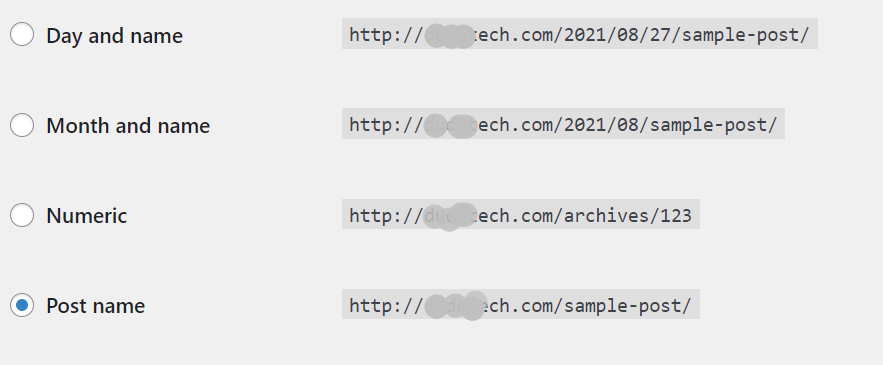
Wordpress permalinks
WordPress permalinks: Pretty permalinks

But another thing you must keep in mind is that you are not limited to use only the above pretty WordPress permalinks settings. WordPress provides you customization options by using structure tags.

Pretty WordPress Permalinks not just look good and easy to remember, but they have two more benefits: it is SEO friendly, and another enhances UX. You might have curious to know how Pretty URLs helps in SEO benefits? Well, search engines use your URL to determine what your page or content page is all about. And if they found your permalink related to the content or page, the search engines find it genuine and legitimate to give them priority in their search engine rankings.

In terms of UX(User Experience), Pretty WordPress permalinks not just help search engines understand the post or content it links, but a user can also easily read and understand the post it links to. For example: If you about us have URL like example.com/?p=245, it is tough to determine and remember such URLs rather than example.com/about-us.

As we have already mentioned in the above sections about the Slugs, these are the last part of your page or post URL. slot automaty online And if you have already gone through the WordPress permalink settings page, the title of the page or content is used in Url. For example, if your content is about “How to monetize your blog?”, it will be automatically generated as an example.com/how-to-monetize-your-blog/.

From the above example, you can see that anyone can easily tell what the content will be all about by looking at the URL. In addition, search engines can easily determine these URLs as pretty WordPress permalinks that have focus keywords.

But it is not enough; you can even improve the slugs for better results by following some tips such as your slug should be not soo lengthy, and it should be long enough to include your focus keyword and be easy to remember.

For example, if a post/page has a Pretty link as ” How to monetize your blog,” it might be better if you use slug as Monetize-blog. And if your website has multiple posts on the same focus keyword and you want to differentiate each one with a different slug. For example, if you have another content on the same focus keyword, ” monetize your blog,” with a different topic such as What are the benefits of monetizing your blog?

In this case, you could use “monetize-your-blogbenefits,” and the pretty permalink would be example.com/monetize-your-blog.

Slugs and User Experience

After knowing the SEO benefits of WordPress, pretty permalinks, now we shall talk about its User Experience benefits (UX).

As per Jacob Nielsen, the following points have been mentioned about what a website must have.

  1. Easy to learn and type URLs
  2. Easy to remember and spell Domain names
  3. Permalink should not change
  4. Short and clean URLs
  5. Urls should not get hacked or provide security from all the malware or hackers attacks.

In addition to the above worth points, A permalink should never be either removed or altered in any case; it has been shared and used in multiple ways on the internet that provided you credibility. Another point to remember is that an URL must be clean and easy to understand so that even a non-expert user can easily understand and remember it.

No doubt, it is not impossible to edit or alter your permalink completely of a post that you have already published. But it is not a good practice and can potentially harm your website DA and even search engine rankings. This is because the original permalink may have been shared on the internet.

Still, if you need to make some edits to change your old permalink with a new one completely, make sure you practice the WordPress directing methods.

WordPress has provided you with multiple options to change the WordPress permalinks and choose whatever you want your permalink should look like.

You can change WordPress permalinks as

  • As soon as you setup your website, you can change your permalink settings to pretty permalinks.
  • You have the option to edit or alter slugs for each posts, when you are writing a post and editing them.
  • You can use WordPress best redirecting practices to point your old/outdated permalink to the new one.
  • You can even compose or create your own plugin to change the way permalink are designed.
  • You have the option to change the permalink structure for tages and categories.

After you set up your website, the first thing you need to do is to configure your WordPress permalinks settings page. Go to your WordPress Dashboard > Settings > Permalinks.
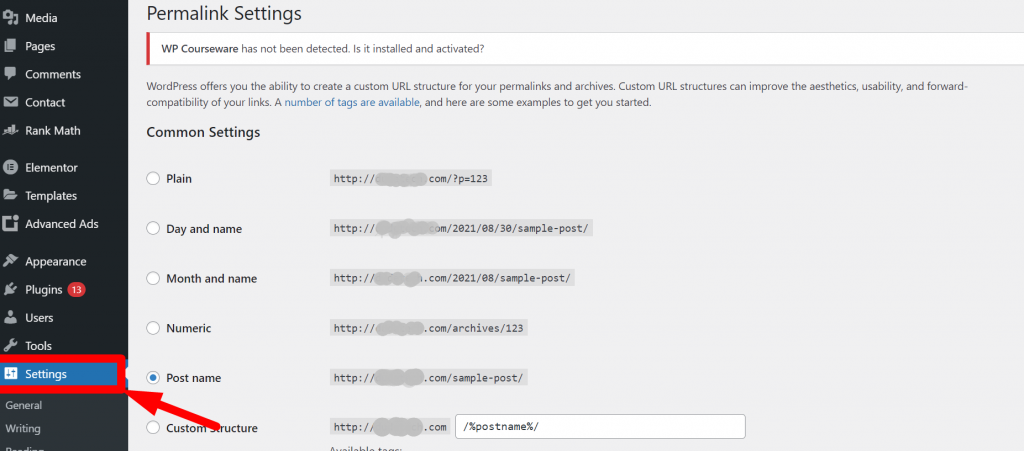
WordPress Permalink Settings page

Common Settings are defined as:

  1. Plain: This option only uses post ID in the URL. However, it can be easily read by browsers but it won’t work for humans like us and the search engines. e.g- yoursite.com/?p=123.
  2. Day and Name: This option uses the date of posts that publised on and the name or title of the post. In the above picture it is showing as: yourwebsite.com/2022/08/30/sample-post/.
  3. Month and Name: Similar too Day and Name, this option uses the Month and Name of the post that you publish. e.g- yourwebsite.com/2022/08/sample-post/.
  4. Numeric: Just like the Plain option, it also uses the post ID. It can alsoo be easily readable by the browsers but won’t work for humans like us. e.g- yourwebsite.com/archives/123.
  5. Post name: Unlike other options that has post ID,month or date, this option uses your the name of the post in the slug. e.g- yourwebsite.com/sample-post/
  6. Custom structure: With this option, you can create your custom structure. You can use certain tags that help you to grab the information from your that will doesn’t change in near future.

Apart from the above permalink settings that you find, there is an optional settings field also provided that lets you set a custom structure for your category and tag archives.

If you like, you may enter custom structures for your category and tag URLs here. For example, using topics as your category base would make your category links like http://example.com/topics/uncategorized/. If you leave these blank, the defaults will be used.

After successfully setting up pretty permalinks on your website, the next thing you need to do is to edit your Pretty permalinks to get better results and optimize as per the search engine and users’ standards.

To optimize WordPress permalinks and slugs of each page and post of your website. It is highly recommended that you must practice this while editing or writing your content. If you have a directly edited slug of any content or page, you have unintentionally also changed its URL. And if the old link was shared anywhere on the internet by your users will be no longer exist and return a 404 error page.

Hence, to carefully carry out the same process, you need to go to your WordPress dashboard > posts > select the post you want to edit.

After that, on the right-hand side of the post creating a screen, you will find the permalink option under the post tab as shown in the picture below:
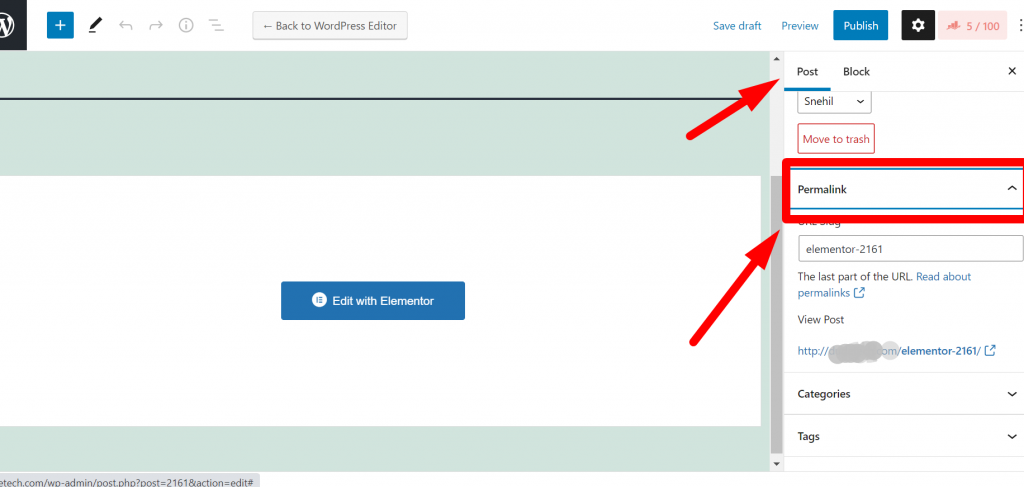
WordPress permalink editing

from the above image, you can see in the post-editing screen on the right-hand side a permalink option is provided under the post section. When you click on it, you fill an automatically generated slug displayed in the URL slug.

Now you can edit this section to make your permalink short, clear, and SEO-friendly that focuses on your target keyword. But before editing it, make sure you have copied the old slug in your notepad or somewhere else so that when you set up redirecting (In case you are editing the old content), the old link cab used.

After editing, now click on the update button to save the changes and hit on Publish button to make it live. But one thing must keep in mind is that you must not forget that if you have to make changes in the slug of an existing post, it could result in a 404 Error for the users who shared the original link. Hence after completion of editing, do not forget to set up redirection.

If you are looking for WordPress permalinks settings, especially for individual archive pages, you need to change the “category” or “tag” in the permalink settings page. However, you also have an option to change the slug of each tag or category.

How to change slugs for Tags and Categories?

To change the slugs for tags and categories, you need to go to your WordPress dashboard > Posts > categories or Posts> Tags. Look out for the tags or category that you want to alter or chance and click on it. Now type in a slug if you want to, or else, the WordPress will automatically generate and assign one, per the tag or category.

However, it is not necessary to have this, it only makes sense when you have categories or tags, and if you choose it for later, you are required to complete the whole redirection.

If you are looking to change WordPress permalinks settings for an eCommerce website, if you are using the woo-commerce plugin, then it creates custom post types and all the taxonomies by itself, and all these permalinks are generated by default.

However, you can still make changes to the permalink and slugs for every custom post and taxonomy.

To change product category, tag, and attribute permalinks, you can go either by using slug or the structure. However, both these works are almost similar for regular tags and categories.

Editing Product category Slug

For editing the product category slug, you need to go to your Products > Attributes. Still, before editing your attribute, you must keep in mind that it is a whole different process, and you have to also deal with attribute terms too.
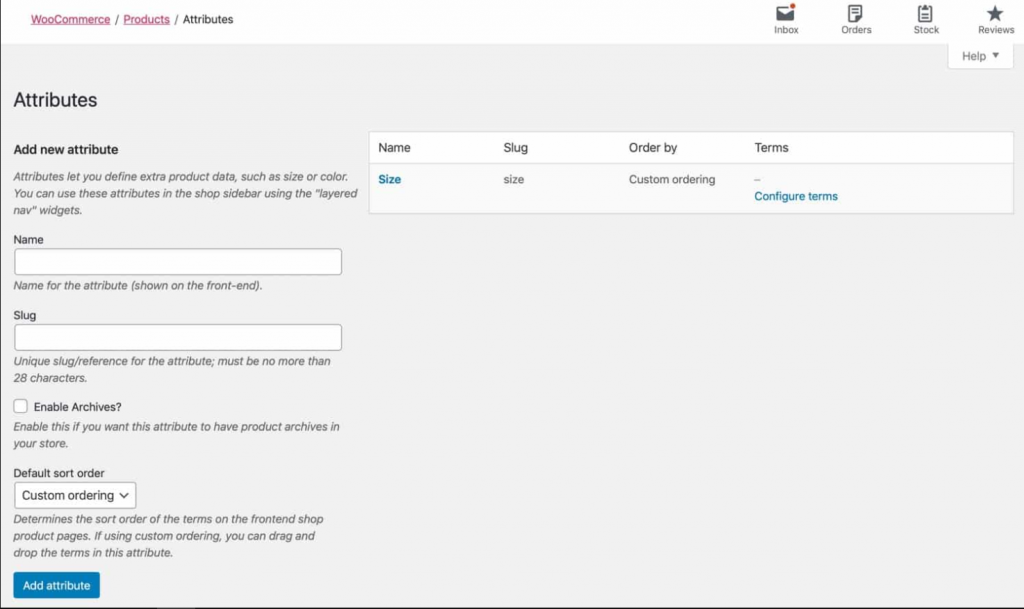
WordPress Permalink Product Attributes

Editing Permalink structure

For editing the Permalink structure, you need to go to your Dashboard Settings > Permalinks and scroll down for the Optional field, where you will find more Woocommerce permalink options. And you can edit the permalink settings for woo-commerce custom taxonomies.

  1. Product cateogory base: By default it is set as product-category but it can be changed as per the terminologies you use in your online store. But one thing you must ensure that whatever you make amendments in your settings, it should not clash with your settings that you have set up for regular categories.
  2. Product tag base: By default it is set as product-tag, but it can also be changed as per your choice. And ensure that it should not also clash with your settings that you have set up for regular post tags.
  3. Product attribute base: Apart from the above two taxonomies, it works differently by having a different structure. The product you add it will by default asigned a slug for each and every attribute name with attributes itself.

Suppose you wish to make some changes in the slug for every tag or category. It would help if you went to your Product section followed by categories or Tags and make changes the way you do with categories and tags.

If you want to edit the slug for an individual category or tag, go to Products > Categories (or Products > Tags) and edit these in the same way you would post tags and categories.
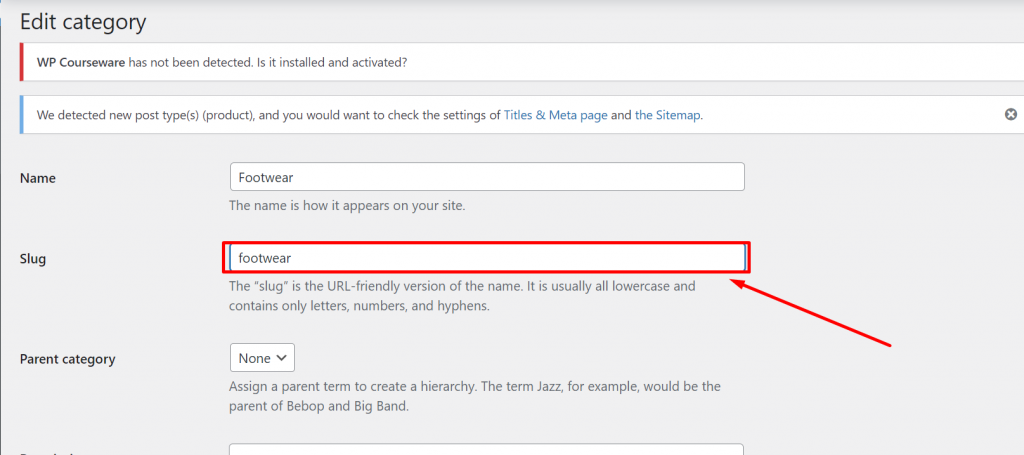
Edit categories

While editing or creating a new attribute, all the procedures will be the same, just as you would for editing categories and tags. i.e., you use the slug option to set up the slug. Or, in another way, if you’re looking to edit the slug for an existing attribute, you need to click on the Edit link just below the attribute you would like to edit.
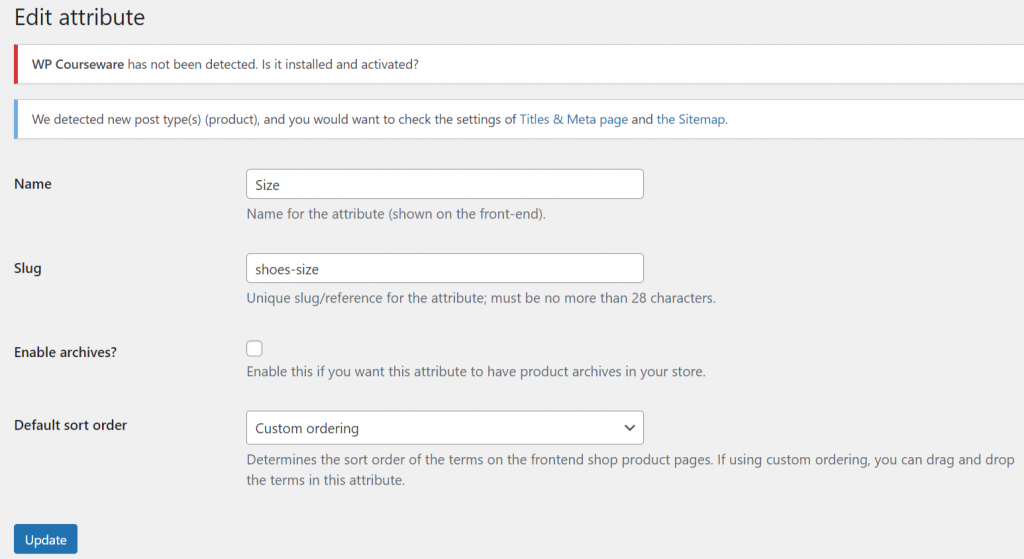
image 7 What Are WordPress Permalinks? How To Configure Correctly 2022?

After completing editing attributes, the find thing you need to do is to click on the Update button to save your changes.

If you are looking to edit or make some changes in the Attribute term slugs, go to attribute > and click on configure terms link just beneath the attribute. You will find a complete list of the terms for that particular attribute.
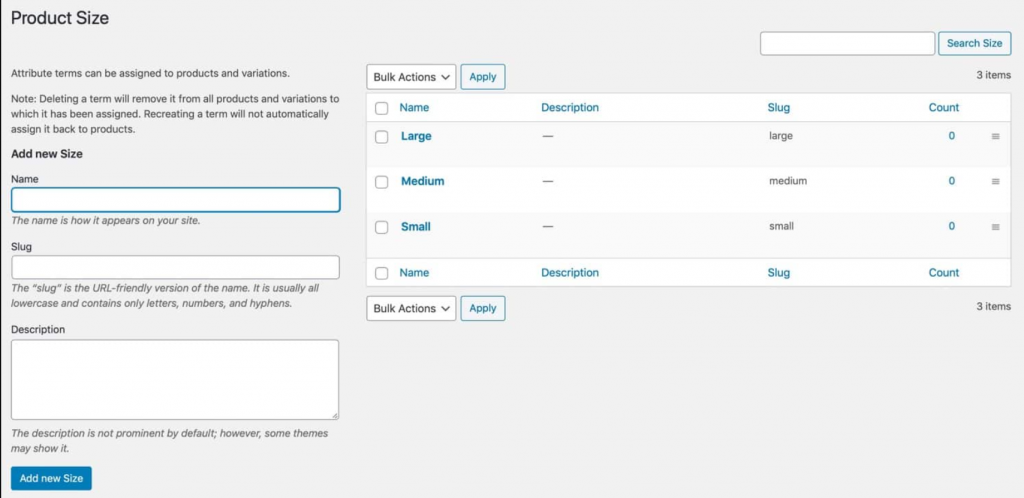
Product Attribute terms listing

Now, you have the option to edit the slug for each term that is being listed, just like you edit for tags and categories.

If you want to edit permalinks of products, go to your WordPress Dashboard > Settings > Permalinks and Lookout for Product Permalinks filed.
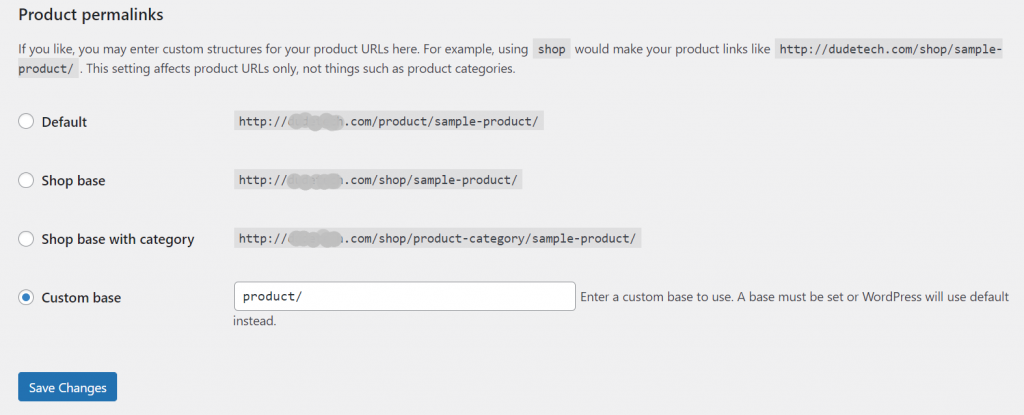
Product Permalink Settings

When you look at the product permalinks section, you will find the following fields to choose from:

  1. Default: These slug will be show if you have already activated pretty permalinks, and it will use slug of each product by default.
  2. Shop base: You will be using shop instead of product in the slug.
  3. Shop base with category: In addition to shop you will be also using category nam e of the product into the URL.
  4. Custom base: This section let you customize your own permalink structure, anyhow. And another important thing you must note that, you simply cannot left or remove the base completely.

When you are done with opting for the suitable option as per your requirement, the next thing you need to do is to click on the save changes button to save your changes.

If you found all these permalink settings quite tedious, WordPress has always provided you with alternative solutions in terms of WordPress plugins. Using a third-party WordPress plugin will help you out to make changes or editing your permalinks over what WordPress has provided you with default permalink settings options.

Permalink Manager Lite
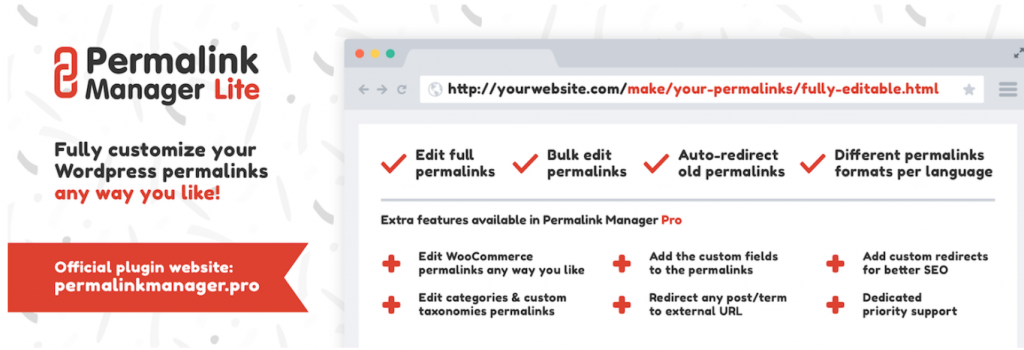
Permalink Manager Lite
Permalink Manager Plugin

Download Now

Permalink Manager Plugin is considered one of the most advanced and highly rated WordPress permalinks editor plugins that let you customize and control the structures of URLs for all the pages, custom posts, and posts. And when a new custom permalink is active, the errors such as 404 and copy content errors will be avoided by automatically redirecting them to the new custom permalink you have defined.

2. Custom Permalinks WordPress plugin

Screenshot 10 4 What Are WordPress Permalinks? How To Configure Correctly 2022?

Download Now

The Custom WordPress Permalinks plugins are best suitable for customizing your URLs of any post, page, category, or tag the way want to. And you do not need to worry about 404 errors; all the old WordPress permalinks will be redirected to the new address without any issue.

Changing WordPress permainks in phpMyAdmin

If you have basic knowledge of WordPress files and using phpMyAdmin, then you can do almost anything through it, including editing permalinks. This comes to the handy and best alternative solution when there is something issue with your WordPress dashboard, and you are unable to access it through your WordPress permalinks Settings page.

But before that, you must make a complete backup of all the files and databases to avoid any mishap during permalink editing.

The First step is to access your phpMyadmin by logging in to your Cpanel by typing your database username and password. At the top of the page, you can see the Databases option. Click on it to open and select the database you want to work with.
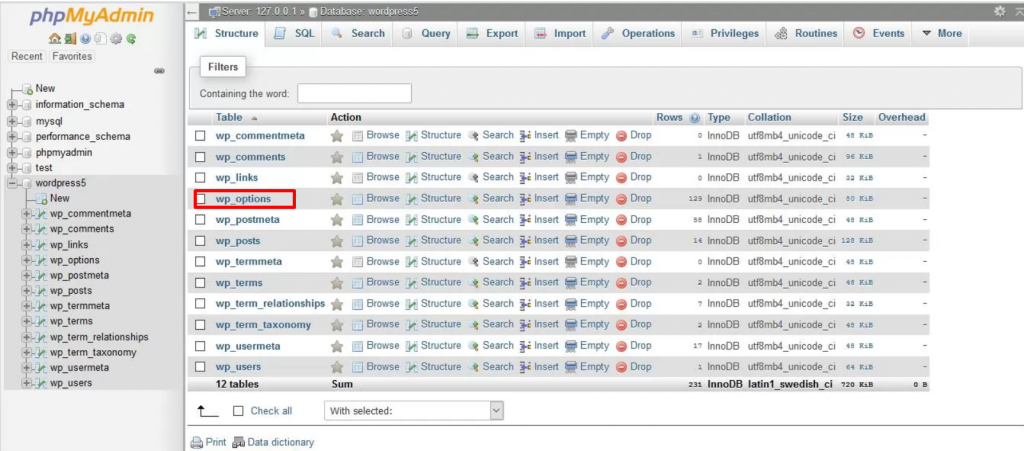
Screenshot 12 4 What Are WordPress Permalinks? How To Configure Correctly 2022?

Select the wp_options as shown in the picture above and look out for the permalink_structure.

Select the wp_options table and find the permalink_structure entry in the option_name column. You might need to navigate beyond the first page of entries.
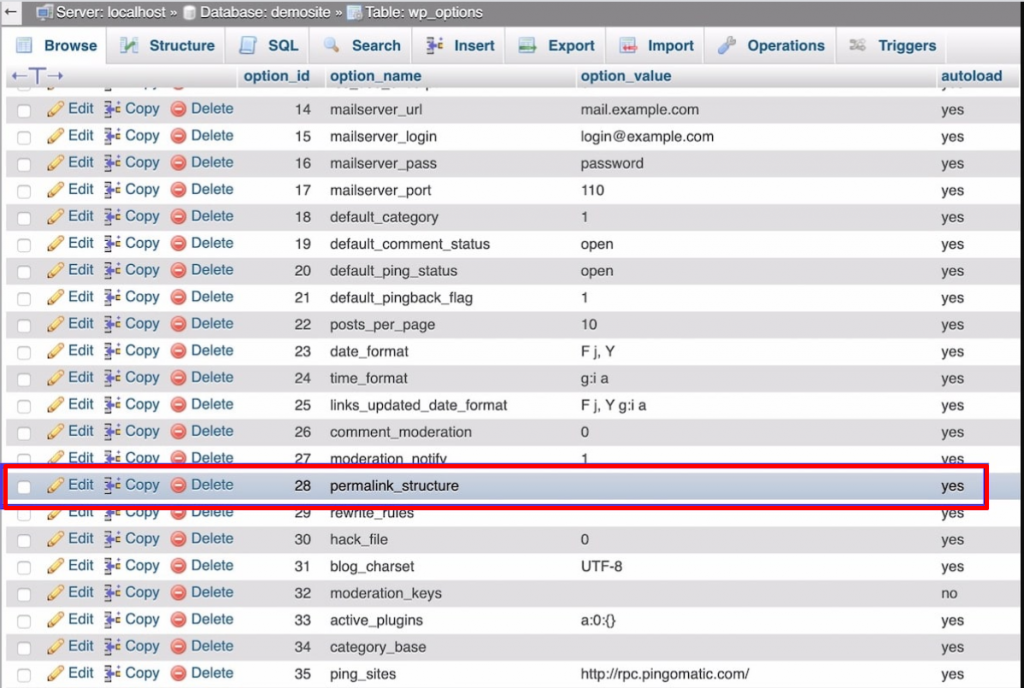
Permalink_structure

As shown in the above picture, you can see on the left side of permalink_structre; an Edit link has been provided. Click on it to add the permalink structure that you wish to use.

Click the Edit link on the left for that entry, then under the option_value field, add the permalink structure you want to use. Use the tags that we identified earlier for use in the Permalinks settings screen.
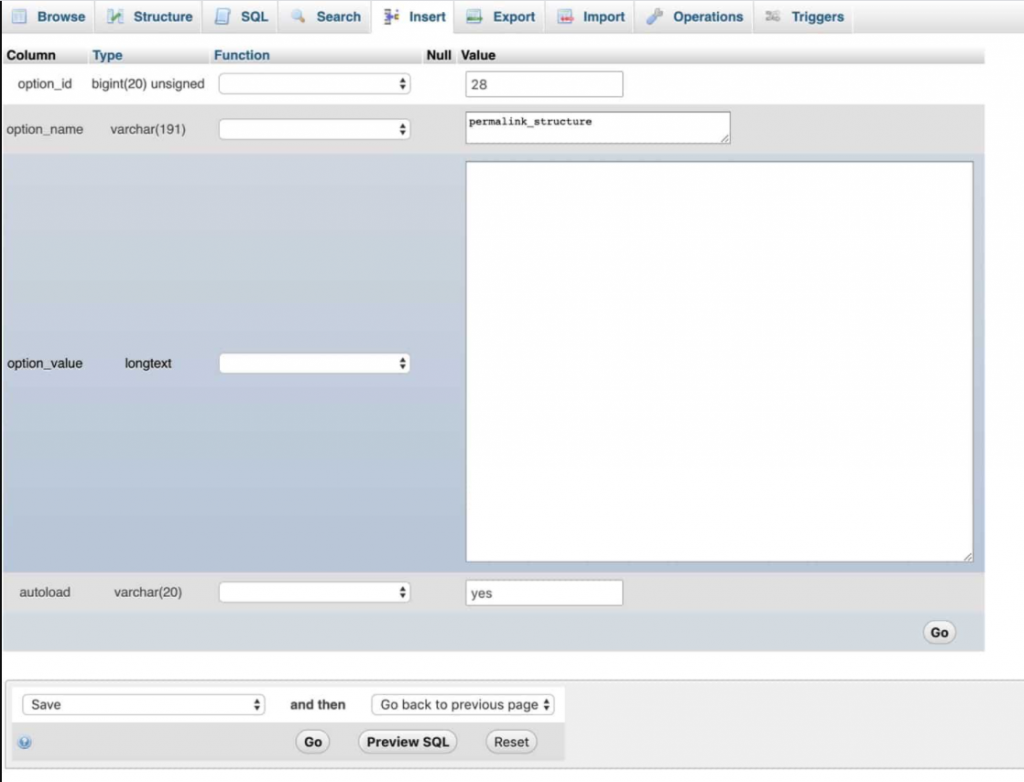
Editing Permalink Structure

Once done with editing, You can click on the Go button to save your WordPress permalinks.

To your surprise, images that you use in your post or content have their own permalinks. And when you upload any media file, such as images or videos, to your website, it will generate multiple links for each media file.

The first one is the link to the original image, and another is the links created when you set media sie settings.

As we have already mentioned that whenever you upload an image or any media, WordPress will create a unique link to the file it is saved on your server. You must have noticed a path named wp-content/uploads while configuring server files.

The image files or the pathname consists mainly of the date on which the image was uploaded. It helps to avoid conflict between the images. If you have uploaded an image of the same file name but on a different date, it won’t create any big issue.

For example, if you have uploaded an image with the name Image001.jpg on a month, say June 2021, the WordPress link will generate as example.com/wp-content/uploads/06/Image002.jpg where the number 06 in the link indicates the month of file upload.

It also works the same way with other media files or documents. For example, example.com/wp-content/uploads/06/emploees.doc. And you might have thought, what if you upload a file with the same name in the same month. Well, WordPress resolve this situation by adding up a number to the end of the file name.

So whenever you upload another file, either image001.jpg or emploees.doc, again in the same month, the file will be saved with the name image001-1.jpg and employees-1.doc.

If you wish to check out the working condition of the original file that you have uploaded or want to link to the original file, check out the procedure how you can find the link.

To find the link to the file, you need to go to your WordPress Dashboard > Media > Library and click on the file that you want to know its link to. A pop-up editing image window will open and showing the File URL and other file details on the right side.
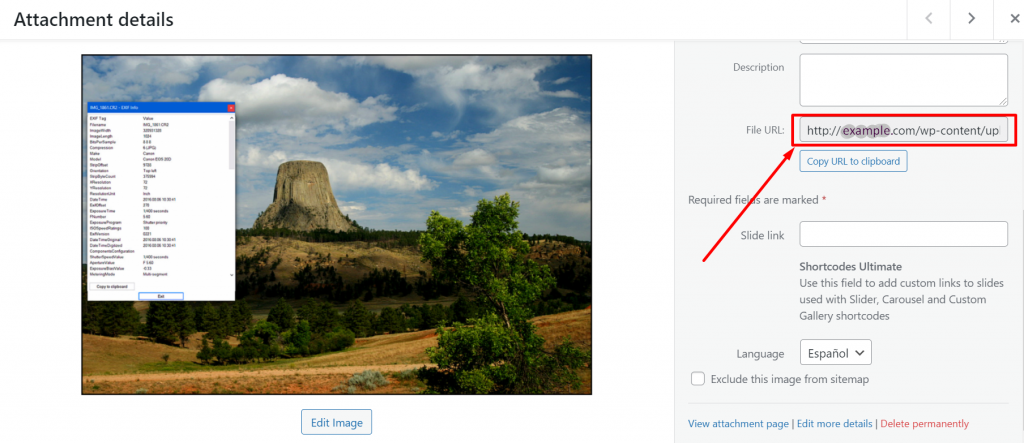
WordPress Image Permalinks

We have already mentioned in the previous section of this post that WordPress also creates permalinks for the images based on their file size. Whenever you set a file size for any image, a permalink will be created automatically. To do this, you need to go to your WordPress dashboard > Settings > Media.
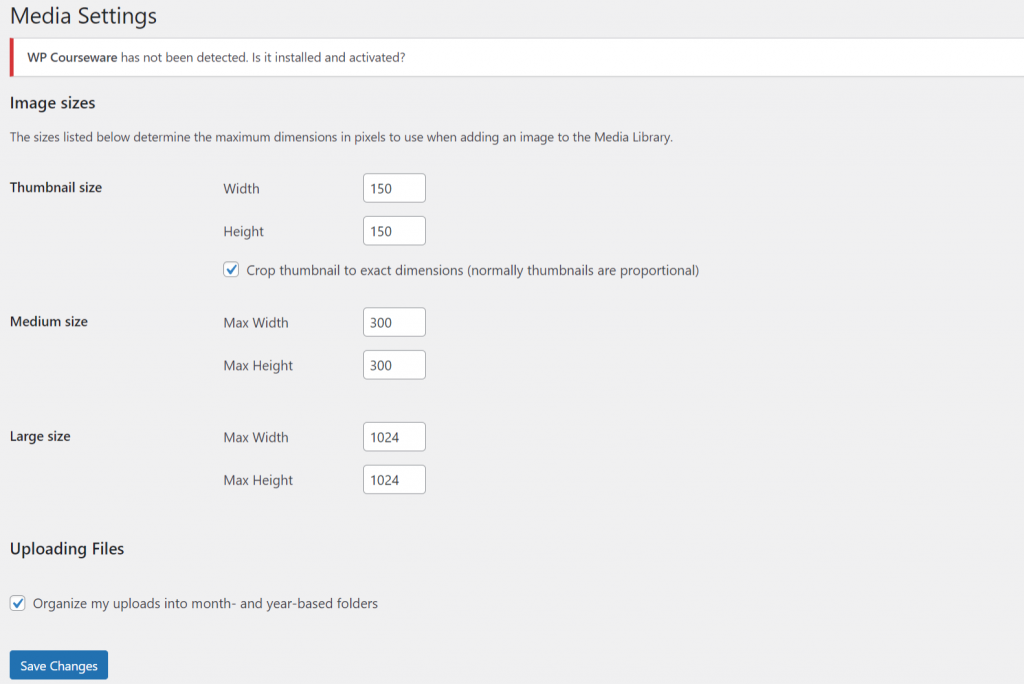
Media file settings page

So whenever you upload an image with a large file size exceeding the large value settings, WordPress will automatically create copies with three different file sizes per the media settings, i.e., Large, Medium, and thumbnail.

However, WordPress won’t name these files as per their different sizes; a user may change its name as per their requirement shortly. Hence, alternatively, WordPress uses the dimension as in the file name and store them at the same place where the original image is being located. i.e in the wp-content/uploads.

To find the URL of all the images of different sizes, the easiest method will be by accessing the WordPress files via the FTP client and find out all the images you have uploaded in a particular month.

For example, let us suppose I have uploaded an image with the file name Image001.jpg. The WordPress will create a copy of the same file with different file sizes using the media settings as follows:-150×150.jpg

  1. Image001-150×150.jpg
  2. Image001-300×300.jpg
  3. Image001-1024×1024.jpg

In the previous sections, we have discussed how you can edit your slug or change your WordPress permalinks. And we have also mentioned the consequences that you may face during editing WordPress permalinks. i.e., your users might face a 404 error page, or it can also affect your SEO.

However, to avoid this or to fix this problem, the best thing you can do is to redirect your old permalink or URLs to the new ones that you have edited or created.

How to Redirect each and every Pages or Posts that you have created?

Redirecting every page or post from the old permalink to the new one that you have edited or created, the first and the most important step you need to do is to set up a redirecting rule.

If you’re with WPOven, You can do redirecting by following these simple steps.

Redirects are server-side rules to handle incoming requests and redirect them for your visitors. The WPOven redirect tool redirects any incoming request for a Domain that is not added to your WPOven dashboard and redirects it to the destination set by you.

Step 1 : Access the Redirect section.

The redirect section can be accessed from your WPOven dashboard, from the ‘Server‘ section. You need to select the server to which you want the request to redirect. Now in this section, you will notice the ‘Redirects’ tab. Click on the ‘Redirects‘ tab to set up the redirect rule.
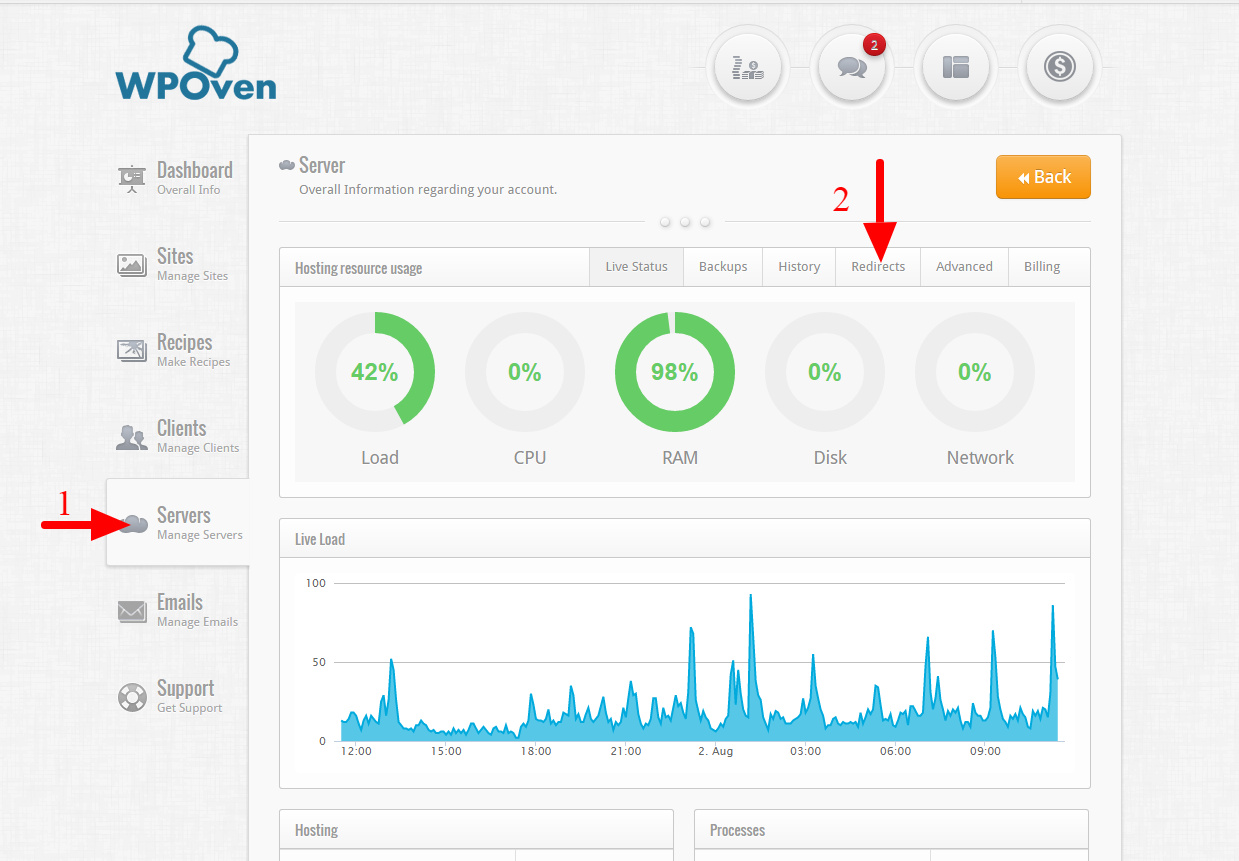
WordPress Permalink Redirecting WPOven

Step 2 :Create a Redirect.

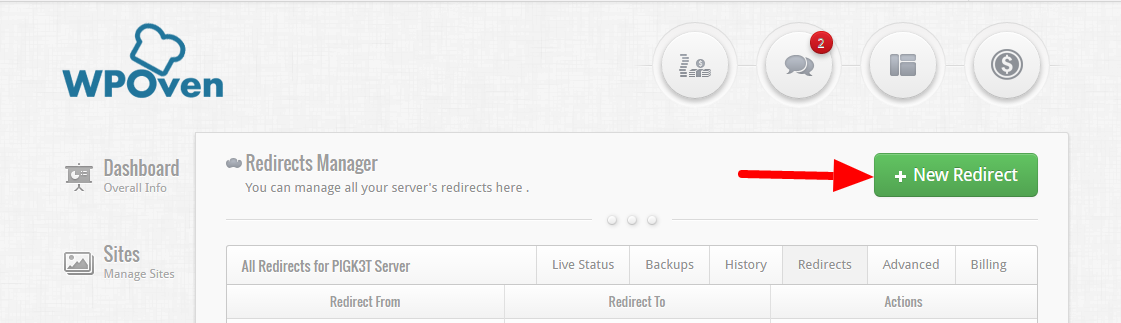
Once you open the ‘Redirects‘ section, you will see the Redirect Manager. Here you will be able to see all the redirect rules that you have set up for this server.
WordPress Permalinks Redirecting WPOven

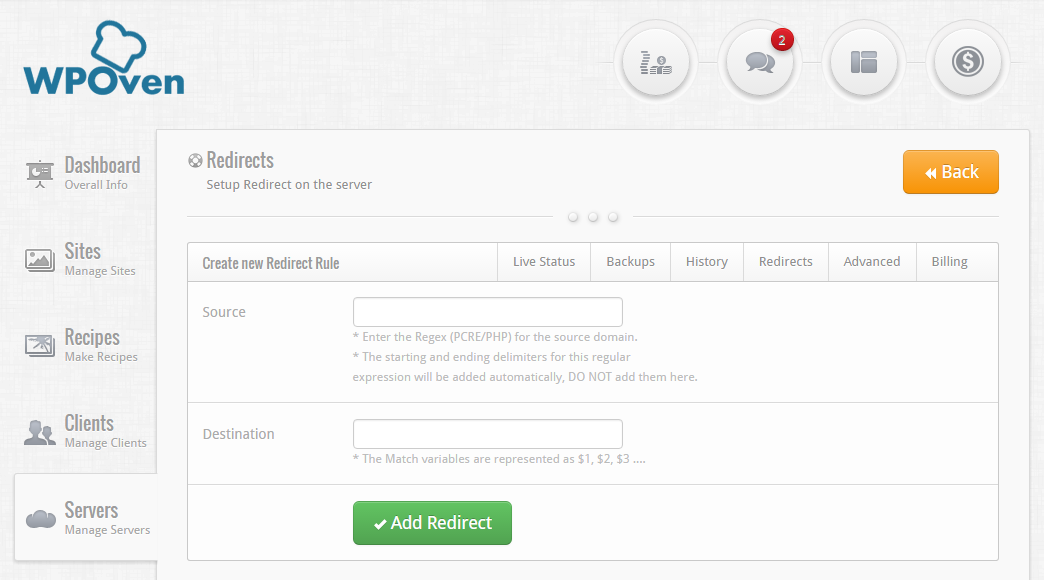
Click on the ‘New Redirect‘ button to add a new redirection rule. Here you will see a form that looks like the form shown below.
WordPress Permalinks Redirecting WPOven

The 2 fields for the form :

  • Source : This field will take the regular expression for the URL you wish to redirect from. Also note that the domain for this URL should not already be added to your WPOven dashboard, otherwise the redirection will not work.
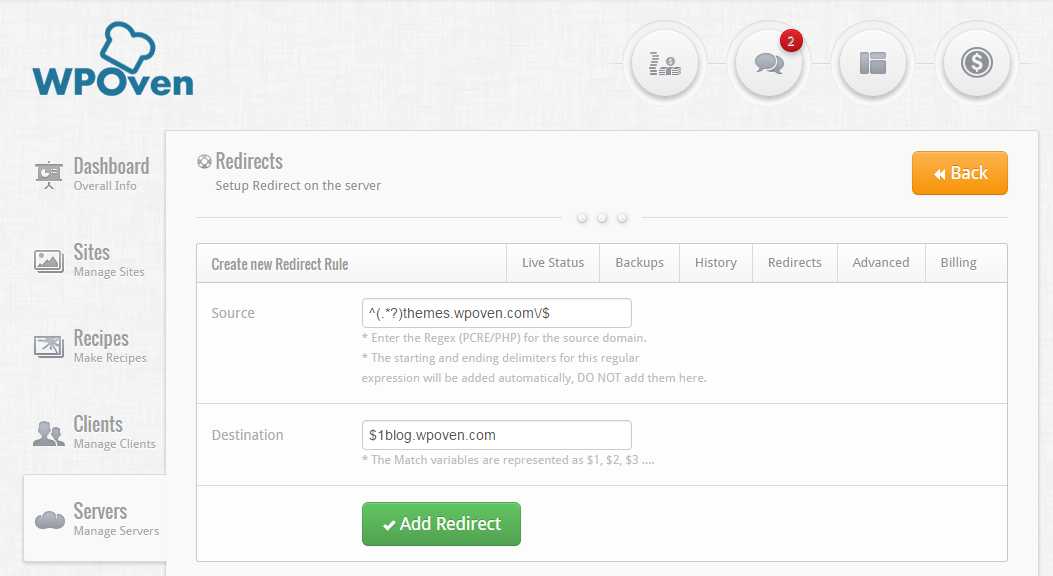
    The path entered should be a PCRE/PHP regular expression (you can learn about Regular expressions here) and it should not include any starting or ending delimiters.For Example, if you wish to redirect themes.wpoven.com to blog.wpoven.com, you would enter the source field as : ^(.*?)themes.wpoven.com/$

    The ‘^’ indicates the starting of the regular expression and ‘$’ the end.

    ‘(.*?)’ Symbol catches the protocol of the request, i.e http:// or https://

  • Destination : Here we will enter the destination path where the visitor will be redirect to,If you wish to add the matched variables from the regular expression from the source field, you can enter them as $1, $2, $3 …..For example, continuing with the previous example, the destination URL for the Redirect to blog.wpoven.com, would be : $1blog.wpoven.com

    Where $1 is the matched expression from the symbol ‘(.*?)’
WordPress Permalinks Redirecting WPOven

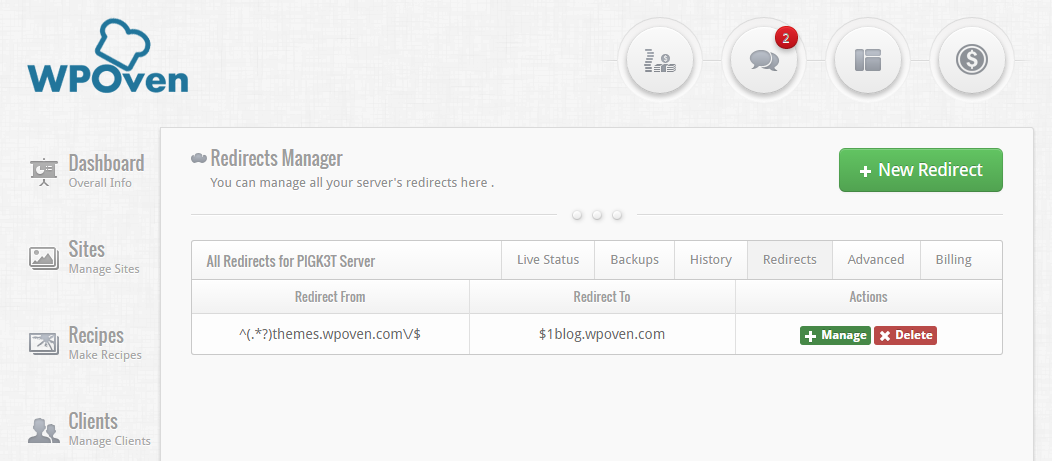
Once you have entered both fields, press the ‘Add Redirect’ button to save the redirect. You should now be able to see your redirect on the Redirect Manager page for the server. To edit an already existing Redirect, you can click on the ‘Manage’ button from the Redirect manager page.
WordPress Permalinks Redirecting WPOven

In case you are not able to set up the redirect or require any assistance with it, please feel free to contact our support team. They will be happy to help you.

How to redirect Archive pages?

If you like to explore more easy and simple alternatives for WordPress permalinks redirection, you can go for the WordPress redirection plugin. This is an ultimate redirection tool that helps you out to redirect URLs easily.

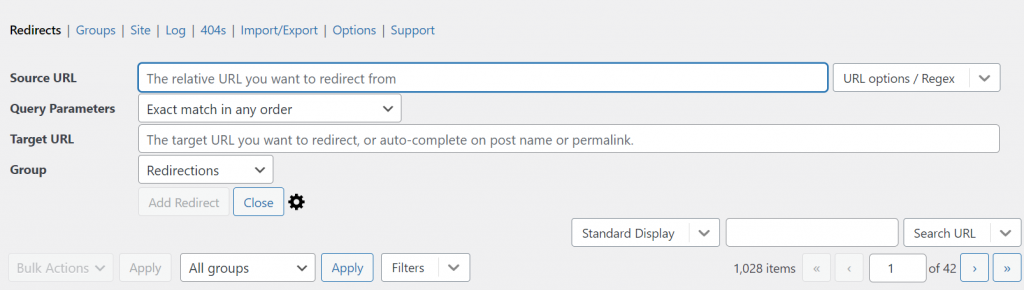
But before using that, you need first to enable the Regex function. To enable it, Go to your WordPress dashboard > Tools > Redirection > Add new redirection.
Screenshot 16 3 What Are WordPress Permalinks? How To Configure Correctly 2022?

Now on the right side, you have URL options to choose from. polskie gry kasyno And Select URL Options/Regex from the Dropdown list.

Redirecting using WordPress Redirecting plugin

In the Source URL field, You can enter  ^(.*?)themes.wpoven.com/$. The entry for Target URL needs to take the source $1blog.wpoven.com. This will exactly be the way we have done through WPOven Dashboard.

Sometimes, even after taking all the necessary steps, you might still found some issues with WordPress Permalinks, and it will not work as planned. To troubleshoot such problems, you can follow our recommended solution:

At times, When you register a new post type or taxonomy, and it doesn’t work as expected. You do not need to worry about it. You can resolve this issue by Got to your WordPress dashboard > Settings > permalinks and refresh settings. And even you do not need to make certain changes to it or click on the save changes button. It can work even you open the Permalink Settings page once.

This happens because WordPress cannot determine whether a custom post type or taxonomy means there is a change in permalink settings.

And even the issue persists, you can also check out these alternate solutions.

  1. Check your Permalink settings, that you have done it correctly or not. Ensure that you have not missed anything or typed the wrong data.
  2. Check out whether you have typed the correct URL in the browser or not.
  3. Check is there any issue with your redirection plugin if you are using a redirection plugin. fortuna zakłady online opinie And cross verify all its settings too.
  4. Examine that you have made any changes to the slug of any post you have created and edit if required.
  5. Try clearing your website cache and check if the issues persists.
  6. verify via phpmyadmin and edit WordPress permalinks if requried.

Summary

WordPress permalinks can do wonders for your WordPress website if you know how to configure and properly implement them. Not just can it enhance user experience, it has the potential to boost your search engine rankings too.

Hence, you add quality information and help you to boost up your website performance. We tried to bring you detailed and comprehensive material on WordPress Permalinks. We have tried to cover all the aspects of WordPress permalinks that you can use in your Website. Whether it is for e-commerce websites, optimizing images, posts, or pages.

If you have anything worth mentioning about more WordPress permalinks, please share your valuable ideas in the comment section below. We love to hear from you.

Frequently Asked Questions

What are permalinks in WordPress?

Permalinks are the permanent URLs to your individual weblog posts, as well as categories and other lists of weblog postings.” Whether your website has archive pages, posts, or even 404 error pages, all they live their own WordPress permalinks.

Where do I find permalinks in WordPress?

You can find the WordPress permalink in the editor section of pages or posts. Usually located on the right-hand side of the editor where a default permalink can be easily shown.

Can I change permalinks in WordPress?

In short, Yes, you can change permalinks in WordPress after or before published the post or page. However, it is not recommended to edit or change the WordPress permalinks after publishing your content or making your page live. It can lead to a 404 error, and if the post has been shared multiple times, there are chances that your backlinks will be lost.

Static vs. Dynamic Websites: Here’s the Difference

Static vs. Dynamic Websites: Here’s the Difference

Written by Jamie Juviler

woman using a computer to view static vs. dynamic websites

During your research into website design and development, you might have come across two terms used to describe types of websites: “static” and “dynamic.”

If you’re building your own website, opting for a static or a dynamic website is one of the first major decisions you’ll need to make, since it will determine how your web pages are stored and delivered to visitors in their browsers.

To help you understand the difference, let’s break down what it means for a website to be static or dynamic, and discuss the pros and cons of each approach. Finally, we’ll share some examples of popular dynamic websites to give you a better sense of what they can do.

Static vs. Dynamic Website

The difference between static websites and dynamic websites is that static websites appear the same for every user that accesses them and only change when a developer modifies the source files, whereas dynamic websites can present different information to different visitors.

No matter how complex a website appears to be, at its core a web page is just an HTML file displayed in a web browser. When you visit a website, your browser sends a request to the web server that hosts the website, and the server responds by sending back an HTML file (along with some other related files). Your browser processes this HTML file and shows it to you as a page.

Ultimately, both static and dynamic websites generate HTML files, but what makes a website “static” versus “dynamic” depends on how the server creates this HTML file before sending it to you. To understand the difference, let’s first unpack how static websites work.

What is a static website?

A static website is made up of a fixed number of pre-built files stored on a web server. These files are written in HTML, CSS, and JavaScript, which are called “client-side” languages because they execute in the user’s web browser. When a user requests a page from the server with a URL, the server returns the HTML file that is specified by the URL and any accompanying CSS and/or JavaScript files.

During this exchange, the web server does not alter the files before they’re shipped to the user, so the web page will look the exact same to everyone who requests it. The content is “static” — the only way to change how the website looks is by manually changing the content of the files.

This doesn’t mean that static websites can’t be interactive or engaging. They can still have clickable links and buttons, images and video, CTAs, forms, digital downloads, and animations powered by CSS or JavaScript. With enough skill, you can even get a static website to look pretty nice. But, a static site will always look the same to everyone.

Common examples of static websites include resume websites, portfolio websites, brochure websites, one-off landing pages, and other informational or read-only sites. These websites are small (three to four pages or fewer), limited in content, and don’t require personalized content or frequent updates.

Static Website Advantages

Most benefits of static websites stem from their simplicity. Static sites are the easiest kind of site to build and maintain from scratch. If you want to launch a basic website quickly and cheaply, static sites are a solid option. With knowledge of HTML and CSS, you can code up a decent one without too much effort or cost.

Static websites also tend to be faster than dynamic websites on the user’s end. This is because pages on static websites are already built and require minimal back-end processing. The server only needs to retrieve the requested files and deliver them to the client. Static websites are also easier to cache due to lack of variation in content. Site speed, also called website performance, is crucial for a positive user experience and also affects search engine ranking.

Static Website Disadvantages

As you can probably guess, a static website isn’t the best option in many cases. The most apparent issue is scalability: Any time you want to make a site-wide content update, like changing the header of your pages, you’ll have to alter each individual HTML file. Plus, whenever you want to add a new page, you’ll have to manually create a new HTML file. For large websites, this simply isn’t practical.

Another disadvantage of static websites is lack of personalization. If you can’t tailor content to visitors, you might miss an opportunity to create a more engaging experience for visitors. Sure, a static site can display information about your business, but what if you could show visitors different information based on, say, their location? For that, you need a dynamic site.

Finally, there are many types of sites that just aren’t possible to build statically. For instance, ecommerce websites typically let users add products to their carts and check out, functions you can’t do with a static site unless you rely on third-party tools.

For these reasons, most websites that you use today are built dynamically. Next, let’s explore what that means.

What is a dynamic website?

Unlike a static website that displays the same content to all visitors in the same format, a dynamic website presents different information to different visitors. The content that a visitor sees can be determined by several factors, such as their location, local time, settings and preferences, and/or actions they’re taken on the website (e.g., shopping habits), making for a more tailored and interactive experience.

To achieve greater flexibility on the front end, dynamic websites require more complexity on the back end. These websites don’t store each page as its own HTML file. Instead, web servers build pages “on-the-fly” — when the user requests a page, the server pulls information from one or multiple databases and constructs an HTML file custom-built for the client. Once the page is built, the HTML file is shipped back to the user’s browser.

To build pages on the back end, dynamic websites employ server-side scripting languages like PHP, Python, Ruby, or server-side JavaScript, in addition to client-side languages (HTML, CSS, and JavaScript). Depending on the amount of data that is being pulled to construct the page, this process can get quite complex. However, the user doesn’t see any of this process — they only see the web page loaded in the browser, same as with static sites.

These days, most websites you use employ at least some dynamic practices. Online stores, social media sites, membership sites, news sites, publishing sites, blogs, and web applications all rely on dynamic content to some degree.

For example, consider an ecommerce site whose home page recommends products based on what they think you’ll want to buy. This means that every visitor will see a slightly different home page. Of course, it wouldn’t make sense to hard-code a page for each person and store it on the server. Instead, server-side code works to determine what content you should see, fetch that content from various databases, and build a page from it.

Other use cases for dynamic content include changing the page language based on the user’s location or settings, displaying a user’s previous orders from your website after they’ve signed in, and gating certain content on your site according to a user’s membership status.

Dynamic Website Advantages

We’ve already touched on the primary advantage of dynamic websites: They enable you to personalize your website’s content to each visitor, which means a more engaging user experience resulting in more conversions and purchases.

Beyond personalization, server-side scripting is very powerful and unlocks a myriad of possibilities for functionality. Dynamic code allows us to build web applications, SaaS software, and rich experiences that simply aren’t possible with a static approach.

It’s also much easier to make site-wide updates on dynamic websites. Administrators can quickly and easily make sweeping changes on their site, rather than updating the source code for each HTML file. On websites that frequently update content and appearance to keep up with their industries, this is a necessity.

Lastly, dynamic websites are more scalable than static websites, as the server does not store a fixed number of pages. Instead, the server constructs a page when it is needed. Going back to our ecommerce site example, say you want to add several new products to your site. Instead of building separate product pages in HTML, you just need to store product information in a database. Server-side scripts can pull this data to construct the product page automatically.

Dynamic Website Disadvantages

Since dynamic websites are more complex than static websites, they require much more time, effort, and know-how to create from scratch. If you don’t have the technical expertise to build and maintain a dynamic website, you can invest in a developer or development team.

Alternatively, you can use a website builder or a content management system (CMS) to handle the technical side of things, so you can place more focus on your site’s content and design. For example, WordPress works by building its pages dynamically using the server-side language PHP.

One other tradeoff of using a dynamic website is a potential drop in performance. Dynamic websites do more processing on the back end in order to deliver pages to visitors, which can affect load time. There are ways to optimize your site speed, and website building software has improved in this area. Still, speed is definitely something to keep in mind when managing a dynamic site, since delays of fractions of a second can cause higher bounce rates.

Dynamic Website Examples

  1. Wayfair (Dynamic Ecommerce Website)
  2. Twitter (Dynamic Social Media Website)
  3. Netflix (Dynamic Entertainment Website)
  4. HubSpot (Dynamic SaaS Website)
  5. The New York Times (Dynamic News Website)

Most websites you use today are likely dynamic ones. To wrap up this post, let’s look at five popular examples of dynamic websites.

1. Wayfair (Dynamic Ecommerce Website)

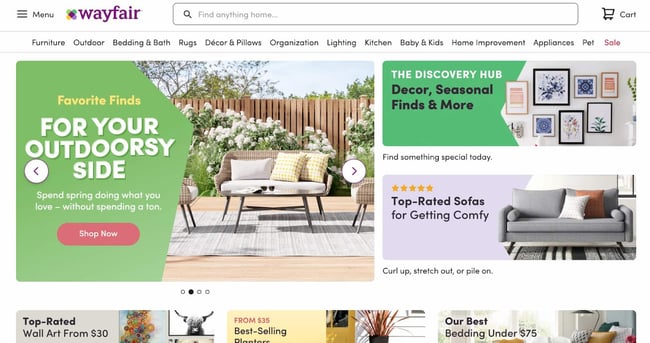
Anyone who uses Wayfair knows the company tailors its shopping experience to customers. Its dynamic website allows you to view products deemed most relevant based on your browsing and purchases.

dynamic website examples: wayfair homepage

2. Twitter (Dynamic Social Media Website)

Given that over 300,000 tweets are published per minute, I can’t think of a better use for a dynamic website. Twitter’s dynamic build allows its interface to change in real time with new tweets.

dynamic website examples: twitter

3. Netflix (Dynamic Entertainment Website)

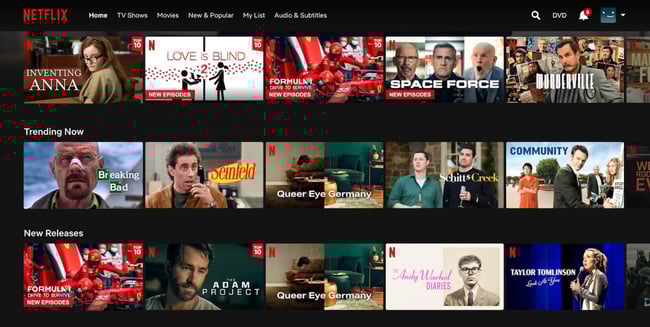
Netflix displays TV and movie recommendations based on your viewing habits and other information that you set in your profile. This dynamic interface has made it into the streaming giant it remains today.

dynamic website examples: netflix

4. HubSpot (Dynamic SaaS Website)

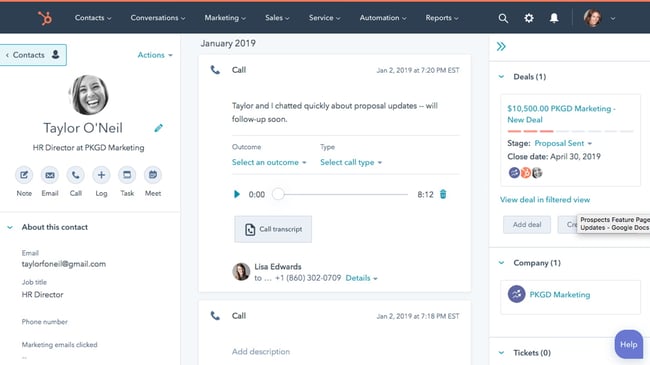
All cloud-based software tools rely on dynamic pages to deliver customized experiences to customers, and HubSpot’s CRM platform is no exception. Every page is, at its core, an amalgamation of customer and business data, organized in a way that helps you take action.

dynamic website examples: hubspot

5. The New York Times (Dynamic News Website)

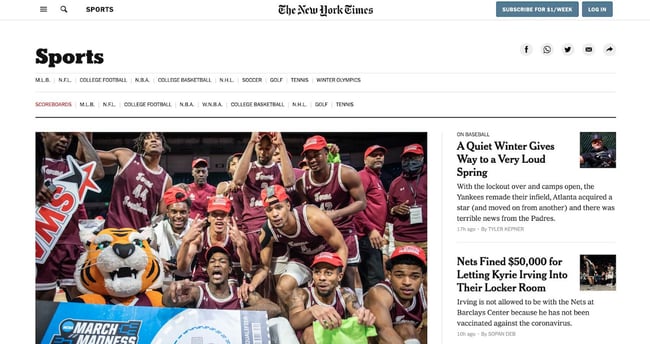
Any large news website requires a setup that enables it to publish frequent articles with minimal friction. The New York Times uses server-side JavaScript frameworks to generate new article pages dynamically and update its home page content accordingly.

dynamic website examples: the new york times homepage

Understanding Static and Dynamic Websites

In the early days of the web, all websites were static — websites were kept as collections of pages stored on servers, and these pages could be delivered to clients when requested.

However, this method became less workable as users started expecting more from websites, like more personalized displays, auto-generated content, and eventually full-blown software available through the cloud.

To sum up, a static approach works well for a small website with no personalization that you want to watch quickly. Anything beyond that, and you’ll probably need a dynamic website.


Originally published Mar 24, 2022 7:00:00 AM, updated March 29 2022

Topics:Website Design

Don’t forget to share this post!

How to Write a Blog Post: A Step-by-Step Guide [+ Free Blog Post Templates]

How to Write a Blog Post: A Step-by-Step Guide [+ Free Blog Post Templates]

Ever read a blog post, you’ve consumed content from a thought leader that is an expert in their industry. Chances are if the blog post was written effectively, you came away with helpful knowledge and a positive opinion about the writer or brand that produced the content.

Anyone can connect with their audience through blogging and enjoy the myriad benefits that blogging provides: organic traffic from search engines, promotional content for social media, and recognition from a new audience you haven’t tapped into yet.

Download Now: 6 Free Blog Post Templates

If you’ve heard about blogging but are a beginner and don’t know where to start, the time for excuses is over because we’ll cover how to write and manage your business’s blog as well as provide helpful templates to simplify your blogging efforts.

  1. What is a blog post?
  2. How to Start a Blog
  3. Writing Your First Blog Post
  4. What makes a good blog post?
  5. Blog Post Examples
  6. How to Write a Blog Post

Let’s get started with an important question.

Blogging may mean different things depending on your niche — so let’s begin with this definition.

What is a blog post?

A blog post is any article, news piece, or guide that’s published in the blog section of a website. A blog post typically covers a specific topic or query, is educational in nature, ranges from 600 to 2,000+ words, and contains other media types such as images, videos, infographics, and interactive charts.

Blog posts allow you and your business to publish insights, thoughts, and stories on your website about any topic. They can help you boost brand awareness, credibility, conversions, and revenue. Most importantly, they can help you drive traffic to your website.

But in order to begin making posts for a blog — you have to learn how to start one, first. Let’s dive in.

How to Start a Blog

  1. Understand your audience.
  2. Check out your competition.
  3. Determine what topics you’ll cover.
  4. Identify your unique angle.
  5. Name your blog.
  6. Create your blog domain.
  7. Choose a CMS and set up your blog.
  8. Customize the look of your blog.
  9. Write your first blog post.

1. Understand your audience.

Before you start writing your blog post, make sure you have a clear understanding of your target audience. 

Ask questions like: What do they want to know about? What will resonate with them? 

This is where the process of creating buyer personas comes in handy. Consider what you know about your buyer personas and their interests while you’re coming up with a topic for your blog post. 

For instance, if your readers are millennials looking to start a business, you probably don’t need to provide them with information about getting started on social media — most of them already have that down.

You might, however, want to give them information about how to adjust their social media approach (for example — from what may be a casual, personal approach to a more business-savvy, networking-focused approach). That kind of tweak is what helps you publish content about the topics your audience really wants and needs. 

Don’t have buyer personas in place for your business? Here are a few resources to help you get started:

2. Check out your competition.

What better way to draw inspiration than to look at your well-established competition?

It’s worth taking a look at popular, highly reviewed blogs because their strategy and execution is what got them to grow in credibility. The purpose of doing this isn’t to copy these elements, but to gain better insight into what readers appreciate in a quality blog.

There are multiple angles you should look at when doing a competitive analysis:

  • Visuals: Look at the blog’s branding, color palette, and theme.
  • Copy: Analyze the tone and writing style of the competition to see what readers respond well to.
  • Topics: See what subject matter their readers enjoy interacting with.

3. Determine what topics you’ll cover.

Before you write anything, pick a topic you’d like to write about. The topic can be pretty general to start as you find your desired niche in blogging.

Some ways to choose topics to cover include asking yourself questions like:

  • Who do I want to write to?
  • How well do I understand this topic?
  • Is this topic relevant?

4. Identify your unique angle.

What perspective do you bring that makes you stand out from the crowd? This is key to determining the trajectory of your blog’s future and there’s many avenues to choose in the process.

  • What unique experience makes you a trusted expert or thought leader on the topic?
  • What problem will you solve for readers?
  • Will you share your opinions on trending debates?
  • Teach your readers how to do something?
  • Compare or share original research?

It’s up to you to decide the unique angle you’ll take on topics.

5. Name your blog.

This is your opportunity to get creative and make a name that gives readers an idea of what to expect from your blog. Some tips on how to choose your blog name include:

  • Keep your blog name easy to say and spell.
  • Link your blog name to your brand message.
  • Consider what your target audience is looking for.

If you still need more assistance, try using a blog name generator.

Make sure the name you come up with isn’t already taken as it could lessen your visibility and confuse readers looking for your content.

6. Create your blog domain.

domain is a part of the web address nomenclature someone would use to find your website or a page of your website online.

Your blog’s domain will look like this: www.yourblog.com. The name between the two periods is up to you, as long as this domain name doesn’t yet exist on the internet.

Want to create a subdomain for your blog? If you already own a cooking business at www.yourcompany.com, you might create a blog that looks like this: blog.yourcompany.com. In other words, your blog’s subdomain will live in its own section of yourcompany.com.

Some CMS platforms offer subdomains as a free service, where your blog lives on the CMS, rather than your business’s website. For example, it might look like this: yourblog.contentmanagementsystem.com. However, to create a subdomain that belongs to your company website, register the subdomain with a website host.

Most website hosting services charge very little to host an original domain — in fact, website costs can be as inexpensive as $3 per month when you commit to a 36-month term.

Here are five popular web hosting services to choose from:

7. Choose a CMS and set up your blog.

CMS (content management system) is a software application that allows users to build and maintain a website without having to code it from scratch. CMS platforms can manage domains (where you create your website) and subdomains (where you create a webpage that connects to an existing website).

HubSpot customers host web content via CMS Hub. Another popular option is a self-hosted WordPress website on a hosting site such as WP Engine. Whether you create a domain or a subdomain to start your blog, you’ll need to choose a web hosting service after you pick a CMS.

8. Customize the look of your blog.

Once you have your domain name set up, customize the appearance of your blog to reflect the theme of the content you plan on creating and your brand.

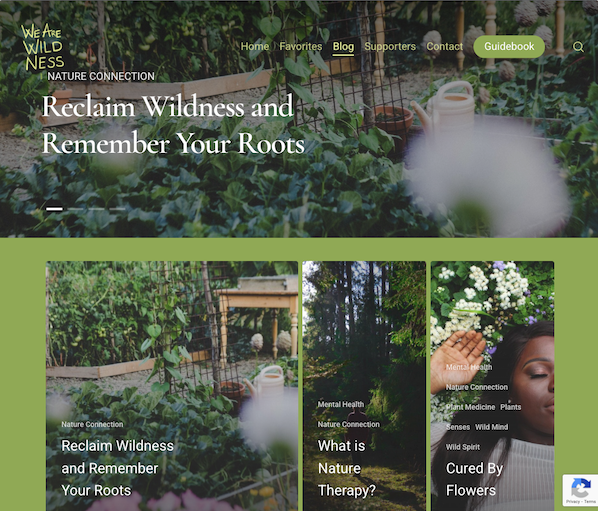
For example, if you’re writing about sustainability and the environment, green might be a color to keep in mind while designing your blog.

Sustainability blog example

Image Source

If you already manage a website and are writing the first post for that existing website, ensure the article is consistent with the website in appearance and subject matter. Two ways to do this are including your:

  • Logo: This can be your business’s name and logo — it will remind blog readers of who’s publishing the content. (How heavily you want to brand your blog, however, is up to you.)
  • “About” Page: You might already have an “About” blurb describing yourself or your business. Your blog’s “About” section is an extension of this higher-level statement. Think of it as your blog’s mission statement, which serves to support your company’s goals.

9. Write your first blog post.

Once you have your blog set up, the only thing missing is the content. While the design and layout are fun and functionally necessary, it’s the content that will draw your readers in and keep them coming back. So how do you actually go about writing one of these engaging and informational pieces?

Writing Your First Blog Post

You’ve got the technical and practical tidbits down — now it’s time to write your very first blog post. And nope, this isn’t the space to introduce yourself and your new blog (i.e. “Welcome to my blog! This is the topic I’ll be covering. Here are my social media handles. Will you please follow?”).

Start with “low-hanging fruit,” writing about a highly specific topic that serves a small segment of your target audience.

That seems unintuitive, right? If more people are searching for a term or a topic, that should mean more readers for you.

But that’s not true. If you choose a general and highly searched topic that’s been covered by major competitors or more established brands, it’s unlikely that your post will rank on the first page of search engine results pages (SERPs). Give your newly born blog a chance by choosing a topic that few bloggers have written about.

Let’s walk through this process.

1. Choose a topic you’re passionate and knowledgeable about.

Before you write anything, pick a topic for your blog post. The topic can be pretty general to start. For example, if you’re a company that sells a CRM for small-to-enterprise businesses, your post might be about the importance of using a single software to keep your marketing, sales, and service teams aligned.

Pro tip: You may not want to jump into a “how-to” article for your first blog post.

Why?

Your credibility hasn’t been established yet. Before teaching others how to do something, you’ll first want to show that you’re a leader in your field and an authoritative source.

For instance, if you’re a plumber writing your first post, you won’t yet write a post titled “How to Replace the Piping System in your Bathroom.” First, you’d write about modern faucet setups, or tell a particular success story you had rescuing a faucet before it flooded a customer’s house.

Here are four other types of blog posts you could start with:

  • List (“Listicle”): 5 ways to fix a leaky faucet
  • Curated Collection: 10 faucet and sink brands to consider today
  • SlideShare Presentation: 5 types of faucets to replace your old one (with pictures)
  • News Piece: New study shows X% of people don’t replace their faucet frequently enough

If you’re having trouble coming up with topic ideas, a good topic brainstorming session should help. In the post I’ve linked, my colleague walks you through a helpful process for turning one idea into many. Similar to the “leaky faucet” examples above, you would “iterate off old topics to come up with unique and compelling new topics.”

This can be done by:

  • Changing the topic scope
  • Adjusting your time frame
  • Choosing a new audience
  • Taking a positive/negative approach
  • Introducing a new format

And if you’re still stuck, let’s take a look at some first blog post idea examples.

First Blog Post Ideas

The Difference Between [Niche Topic] and [Niche Topic], Explained by a [Niche Expert]

  • The Difference Between SEM and SEO, Explained by a Marketing Expert
  • The Difference Between Sedans and Coupes, Explained by a Car Mechanic
  • The Difference Between Baking and Broiling, Explained by a Professional Baker

The 10 Best and Worst [Niche Tools] for [Niche Activity]

  • The 10 Best and Worst Writing Software for Fiction Writing
  • The 10 Best and Worst CRMs for Nurturing Prospects
  • The 10 Best and Worst Family Cars for Cross-Country Roadtrips

8 [Niche Activity] Common Mistakes (+ Ways to Fix Them)

  • 8 Non-Fiction Writing Common Mistakes (+ Ways to Fix Them)
  • 8 Salmon Broiling Common Mistakes (+ Ways to Fix Them)
  • 8 Car Maintenance Common Mistakes (+ Ways to Fix Them)

9 Proven Tips for [Niche Activity]

  • 9 Proven Tips for Checking Plumbing Problems under Your Kitchen Sink
  • 9 Proven Tips for Writing a Non-Fiction Bestseller
  • 9 Proven Tips for Doing DIY Car Maintenance

Why We/I Switched from [Niche Tool] to [Niche Tool] (Comparison)

  • Why We Switched from Pipedrive to HubSpot (Comparison)
  • Why I Switched from Microsoft Word to Scrivener (Comparison)
  • Why We Switched from iMacs to Surface Studio (Comparison)

[Niche Tool] vs [Niche Tool]: Which [Tool] is Best for You?

  • Zendesk vs Freshcaller: Which Call Software is Best for You?
  • Air Fryer vs Convection Oven: Which One is Best for You?
  • Mazda Miata vs Toyota Supra: Which Sports Car is Best for You?

The Ultimate Roundup of [Niche Activity] Tips and Tricks

  • The Ultimate Roundup of Novel Writing Tips and Tricks
  • The Ultimate Roundup of Macaroon Baking Tips and Tricks
  • The Ultimate Roundup of Solo Traveling Tips and Tricks

Want some real examples of blog posts? See what your first blog post can look like based on the topic you choose and the audience you’re targeting.

2. Target a low-volume keyword to optimize around.

Finding a keyword with low searches in Google (we recommend sticking to about 10 to 150 monthly searches). These topics offer less competition and should therefore allow your new blog post to rank more easily.

To choose a topic, you can either do a traditional brainstorming session or carry out keyword research. We suggest the latter because you can actually see how many people are looking for that topic.

Now, don’t be intimidated by the term “keyword research.” It’s not just for marketers, but for new bloggers, too. And it’s really easy to do.

To jumpstart your keyword research, first begin by identifying the general topic of your blog.

Say you’re a plumber. Your general, high-level topic might be “plumbing” (67K monthly searches).

Next, put this term into a keyword research tool such as:

When you run this term through the tool, a list of related keywords will appear. Scan the list and choose one with a lower search volume. For this example, we’ll use “under sink plumbing” (1.4K monthly searches).

Run that keyword in the keyword research tool again. Look at the related keywords. Find one with a lower search volume. Do that again.

For this example, we’ll settle on “plumbing problems under kitchen sink” (10 monthly searches). That’s the topic for our first post.

TLDR; Choose a low-volume, low-competition keyword that will ensure your first post ranks.

For more help on keyword research, here are more resources you can use:

3. Google the term to understand your audience’s search intent.

You’ve got your topic — now, you need to check that the user’s search intent would be fulfilled by a blog post.

What does that mean?

If someone is looking for “plumbing problems under a kitchen sink,” they might be looking for a tutorial, a diagram, an article, or a product that can fix the issue. If they’re looking for the first three, you’re good — that can be covered in a blog post. A product, however, is different, and your blog post won’t rank.

How do you double-check search intent?

Google the term and look at the results. If other articles and blog posts rank for that term, you’re good to go. If you only find product pages or listicles from major publications, then find a new topic to cover in your first post.

Consider the term “under sink plumbing bathroom” (30 monthly searches). It seemed like a perfect fit because it had low monthly searches.

Upon Googling the term, we found product carousels, product pages from Home Depot and Lowes, and guides written by major publications. (You’ll also want to avoid topics that have been covered by major publications, at least for now.)

TLDR; Before writing your first blog post about a low-volume topic, double-check the user intent by Googling the keyword. Also, don’t forget to take a look at who’s written about that topic so far. If you see a major brand, consider writing about another topic.

4. Find questions and terms related to that topic.

You’ve got a highly unique topic that’s been covered by just a few people so far. It’s time to flesh it out by covering related or adjacent topics.

Use the following tools:

  • Answer the Public: When you place your keyword into this tool, it will give you a list of questions related to that term.
  • Google: Google is your best friend. Search for the term and look under “People also ask” and “People also search for.” Be sure to touch upon those topics in the post.

You can also use these keyword research tools we mentioned above in step one.

5. Come up with a working title.

You might come up with a few different working titles — in other words, iterations of approaching that topic to help you focus your writing.

For example, you may decide to narrow your topic to “Tools for Fixing Leaky Faucets” or “Common Causes of Leaky Faucets.” A working title is specific and will guide your post so you can start writing.

Let’s take a real post as an example: “How to Choose a Solid Topic for Your Next Blog Post.”

Appropriate, right? The topic, in this case, was probably “blogging.” Then the working title may have been something like, “The Process for Selecting a Blog Post Topic.” And the final title ended up being “How to Choose a Solid Topic for Your Next Blog Post.”

See that evolution from topic, to working title, to final title? Even though the working title may not end up being the final title (more on that in a moment), it still provides enough information so you can focus your blog post on something more specific than a generic, overwhelming topic.

6. Create an outline.

Sometimes, blog posts can have an overwhelming amount of information — for the reader and the writer. The trick is to organize the info in a way so readers aren’t intimidated by length or amount of content. This organization can take multiple forms — sections, lists, tips — whatever’s most appropriate. But it must be organized!

Featured Resource: 6 Free Blog Post Templates

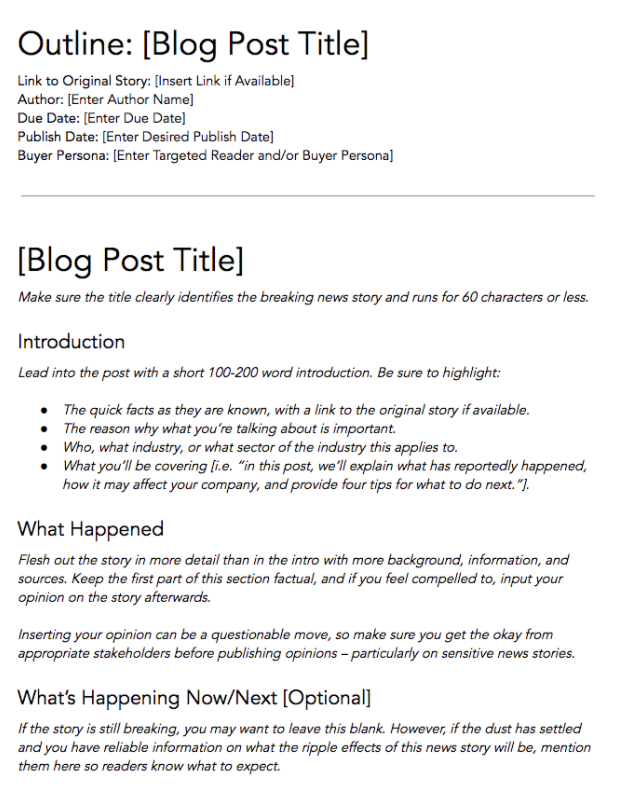
Blog-Post-Template

Download These Templates for Free

Let’s take a look at the post, “How to Use Snapchat: A Detailed Look Into HubSpot’s Snapchat Strategy.” There’s a lot of content in the piece, so it’s broken up into a few sections using descriptive headers. The major sections are separated into subsections that go into more detail, making the content easier to read.

To complete this step, all you really need to do is outline your post. This way, before you start writing, you’ll know which points you want to cover and the best order to do so. And to make things even easier, you can download and use our free blog post templates, which are pre-organized for six of the most common blogs. Just fill in the blanks!

7. Write an intro (and make it captivating).

We’ve written more specifically about writing captivating introductions in the post “How to Write an Introduction,” but let’s review, shall we?

First, grab the reader’s attention. If you lose the reader in the first few paragraphs — or even sentences — of the introduction, they’ll stop reading (even before they’ve given your post a fair shake). You can do this in a number of ways: tell a story or a joke, be empathetic, or grip the reader with an interesting fact or statistic.

Then, describe the purpose of your post and explain how it will address a problem the reader may be experiencing. This will give the reader a reason to continue reading and show them how the post will help them improve their work or lives.

Here’s an example of an intro we think does a good job of attracting a reader’s attention right away:

“Blink. Blink. Blink. It’s the dreaded cursor-on-a-blank-screen experience that all writers — amateur or professional, aspiring or experienced — know and dread. And of all times for it to occur, it seems to plague us the most when trying to write an introduction.”

8. Build out each section of your outline.

The next step — but not the last — is actually writing the content. We can’t forget about that, of course.

Now that you have your outline or template, you’re ready to fill in the blanks. Use your outline as a guide and expand on all points as needed. Write about what you already know, and if necessary, conduct additional research to gather more information, examples, and data to back up your points, while providing proper attribution when incorporating external sources. When you do, always try to find accurate and compelling data to use in your post.

If you’re having trouble stringing sentences together, you’re not alone. Finding your “flow” can be challenging for a lot of folks. Luckily, there are a ton of tools you can lean on to help you improve your writing. Here are a few to get you started:

  • Power Thesaurus: Stuck on a word? Power Thesaurus is a crowdsourced tool that provides users with a number of alternative word choices from a community of writers.
  • ZenPen: If you’re having trouble staying focused, check out this distraction-free writing tool. ZenPen creates a minimalist “writing zone” designed to help you get words down without having to fuss with formatting right away.
  • Cliché Finder: Feeling like your writing might be coming off a little cheesy? Identify instances where you can be more specific using this handy cliché tool.

You can also refer to our complete list of tools for improving your writing skills. And if you’re looking for more direction, the following resources are chock-full of valuable writing advice:

9. Publish and promote your first post any way you can.

As a new blogger, you likely don’t have a social media following yet. Thankfully, you don’t need a huge following before you can create a promotion strategy.
https://www.youtube.com/embed/Gg-E-NJ10zc?feature=oembed

A promotion strategy is your master plan for how you create, post, and engage with your social media content. It helps you take advantage of social and digital technologies to share your business, or in this case, your content. Having a solid promotional strategy offers your audience from different marketing channels more ways to find your blog posts.

Here are more blog post promotion resources:

What makes a good blog post?

Before you write a blog, make sure you know the answers to questions like, “Why would someone keep reading this entire blog post?” and “What makes our audience come back for more?”

To start, a good blog post is interesting and educational. Blogs should answer questions and help readers resolve a challenge they’re experiencing — and you have to do so in an interesting way.

It’s not enough just to answer someone’s questions — you also have to provide actionable steps while being engaging. For instance, your introduction should hook the reader and make them want to continue reading your post. Then, use examples to keep your readers interested in what you have to say.

Remember, a good blog post is interesting to read and provides educational content to audience members.

(Want to learn how to apply blogging and other forms of content marketing to your business?

Check out HubSpot Academy’s free content marketing course.)

Quick Blog Writing Tips

  • Conduct research if necessary to convey your point.
  • Make your content skimmable; break it into digestible chunks.
  • Include interesting quotes or facts for emphasis on the subject.
  • Paint a full picture with images, graphics or video.
  • Use Grammarly to catch mistakes.
  • If you don’t know where to start, start by telling a story.
  • Reference social media posts.
  • Each sentence should convey a single idea.

While you have several tools and tips already, we wanted to provide you with some formatting guidelines to use before you publish your own.

Blog Format Guidelines

  1. Include H2s to arrange ideas.
  2. Center your Images.
  3. Add alt text.
  4. Keep your sentences clear and concise.
  5. Use media with purpose.

1. Include H2s to arrange ideas.

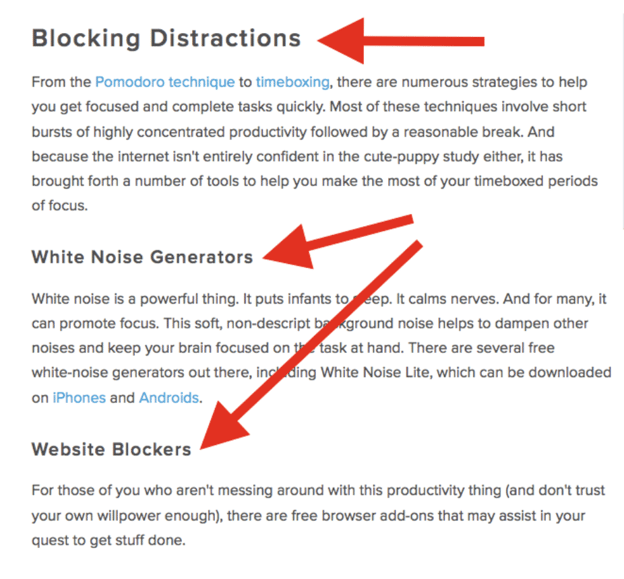
When you begin typing your blog content, it’s important that you divide paragraphs into sections that make it easier for the reader to find what they need.

If you’re just starting out, then focus on the overarching H2s you want to talk about, and you’ll be able to branch off into subheaders and more naturally as you continue.

2. Center your images.

This is a simple practice that can help your content look more professional with little effort. Centering your images keeps the reader’s attention drawn to the subject — not searching for elsewhere.

Centering also looks better when translating from PC to mobile devices. As formatting transitions to small screens or windows, a centered image will remain the focal point.

3. Add alt text.

So those images you centered earlier, make sure you have descriptive alt text for them, too.

Image alt text allows search engines, like Google, to crawl and rank your blog post better than pages lacking the element. It also leads readers to your blog post if the keywords included are what they searched for in the first place.

Besides SERP features, image alt text is beneficial to readers by providing more accessibility. Image alt text allows people to better visualize images when they can’t see them, and with assistive technology, can be auditorially read aloud for people to enjoy.

4. Keep your sentences short and concise.

When you begin working on the body of your blog post, make sure readers can clearly understand what you’re trying to accomplish.

You shouldn’t feel pressure to elongate your post with unnecessary details, and chances are that if you keep it concise, readers will derive more value from your work.

5. Use media with a purpose.

Break up the monotony of your blog post with some multimedia content where seen fit.

Your reader will enjoy visiting a blog page with images, videos, polls, audio or slideshows as opposed to a page of black and white text.

It also makes it more interactive and improves your on-page search engine optimization (SEO).

Now, do you want some real examples of blog posts? See what your first blog post can look like based on the topic you choose and the audience you’re targeting.

Blog Post Examples

  1. List-Based Post
  2. Thought Leadership Post
  3. Curated Collection Post
  4. SlideShare Presentation
  5. Newsjacking Post
  6. Infographic Post
  7. How-to Post
  8. Guest Post

1. List-Based Blog Post

List-Based Post Example: 17 Blogging Mistakes to Avoid in 2021, According to HubSpot Bloggers

List-based posts are sometimes called “listicles,” a mix of the words “list” and “article.” These are articles that deliver information in the form of a list. A listicle uses sub-headers to break down the blog post into individual pieces, helping readers skim and digest your content more easily.

As you can see in the example from our blog, listicles can offer various tips and methods for solving a problem.

2. Thought Leadership Post

Example: How HubSpot’s Customers Are Shaping the Next Normal

Thought-leadership-blog-example

Thought leadership posts allow you to share your expertise on a particular subject matter and share firsthand knowledge with your readers.

These pieces — which can be written in the first person, like the post shown above — help you build trust with your audience so people take your blog seriously as you continue to write for it.

3. Curated Collection Post

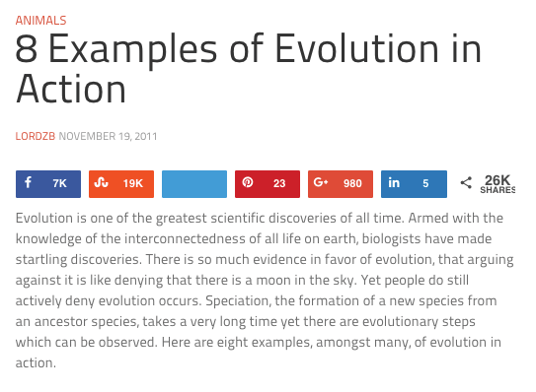
Example: 8 Examples of Evolution in Action

An example blog post featuring a curated collection

Curated collections are a special type of listicle blog post. Rather than sharing tips or methods for doing something, this type of blog post shares a list of real examples that all have something in common in order to prove a larger point.

In the example post above, Listverse shares eight real examples of evolution in action among eight different animals — starting with the peppered moth.

4. Slide Presentation

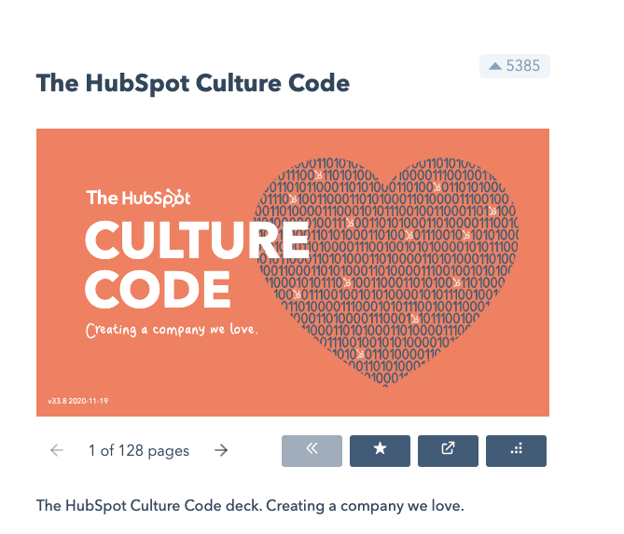
Example: The HubSpot Culture Code

Example slides presentation, HubSpot Culture Code

HubSpot Slides is a presentation tool that helps publishers package a lot of information into easily shareable slides. Think of it like a PowerPoint, but for the web. With this in mind, SlideShare blog posts help you promote your SlideShare so that it can generate a steady stream of visitors.

Unlike blogs, slide decks don’t often rank well on search engines, so they need a platform for getting their message out there to the people who are looking for it. By embedding and summarizing your SlideShare on a blog post, you can share a great deal of information and give it a chance to rank on Google at the same time.

Need some slideshow ideas? In the example above, we turned our company’s “Culture Code” into a slides presentation that anyone can look through and take lessons from, and then promoted it in a blog post.

5. Newsjacking Post

Example: Ivy Goes Mobile With New App for Designers

An example of a newsjacking blog post

“Newsjacking” is a nickname for “hijacking” your blog to break important news related to your industry. Therefore, the newsjack post is a type of article whose sole purpose is to garner consumers’ attention and, while offering them timeless professional advice, prove your blog is a trusted resource for learning about the big things that happen in your industry.

The newsjack example above was published by Houzz, a home decor merchant and interior design resource, about a new mobile app that was launched just for interior designers. Houzz didn’t launch the app, but the news of its launching is no less important to Houzz’s audience.

6. Infographic Post

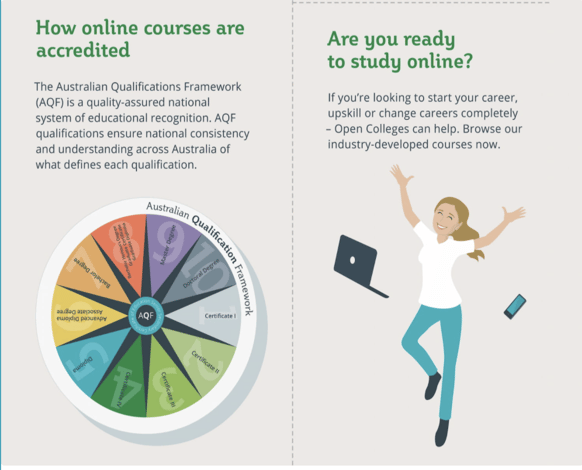
Example: The Key Benefits of Studying Online [Infographic]

An example from an infographic blog postThe infographic post serves a similar purpose as the SlideShare post — the fourth example, explained above — in that it conveys information for which plain blog copy might not be the best format.
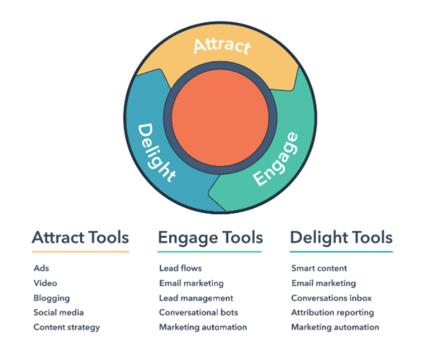
For example, when you’re looking to share a lot of statistical information (without boring or confusing your readers), building this data into a well-designed, even engaging infographic can keep your readers engaged with your content. It also helps readers remember the information long after they leave your website.

7. How-to Post

Example: How to Write a Blog Post: A Step-by-Step Guide

For this example, you need not look any further than the blog post you’re reading right now! How-to guides like this one help solve a problem for your readers. They’re like a cookbook for your industry, walking your audience through a project step by step to improve their literacy on the subject.

The more posts like this you create, the more equipped your readers will be to work with you and invest in the services you offer.

8. Guest Post

Example: Your Bookmarkable Guide to Social Media Image Sizes in 2021 [Infographic]

Guest posts are a type of blog post that you can use to include other voices on your blog. For example, if you want to get an outside expert’s opinion on a topic, a guest post is perfect for that.

Additionally, these posts give your blog variety in topic and viewpoint. If your customer has a problem you can’t solve, a guest post is a great solution.

If you begin accepting guest posts, set up editorial guidelines to ensure they’re up to the same standards as your posts.

So we’ve gone through the different types of blog posts you can make, but how do you consistently make quality blog posts that your viewers will enjoy?

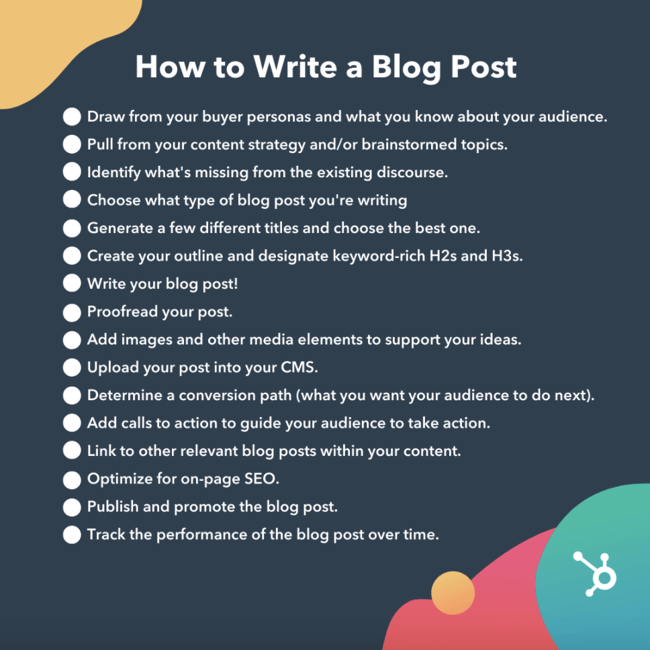
How to Write a Blog Post Graphic

How to Write a Blog Post

  1. Draw from your buyer personas and what you know about your audience.
  2. Pull from your content strategy and/or brainstormed topics.
  3. Identify what’s missing from the existing discourse.
  4. Choose what type of blog post you’re writing.
  5. Generate a few different titles and choose the best one.
  6. Create your outline and designate keyword-rich H2s and H3s.
  7. Write your blog post!
  8. Proofread your post.
  9. Add images and other media elements to support your ideas.
  10. Upload your post into your CMS.
  11. Determine a conversion path (what you want your audience to do next).
  12. Add calls to action to guide your audience to take action.
  13. Link to other relevant blog posts within your content.
  14. Optimize for on-page SEO.
  15. Publish and promote the blog post.
  16. Track the performance of the blog post over time.

1. Draw from your buyer personas and what you know about your audience.

Before you start writing your blog post, make sure you have a clear understanding of your target audience.

Ask questions like: What do they want to know about? What will resonate with them?

This is where the process of creating buyer personas comes in handy. Consider what you know about your buyer personas and their interests while you’re coming up with a topic for your blog post.

For instance, if your readers are millennials looking to start a business, you probably don’t need to provide them with information about getting started in social media — most of them already have that down.

You might, however, want to give them information about how to adjust their social media approach (for example — from what may be a casual, personal approach to a more business-savvy, networking-focused approach). That kind of tweak is what helps you publish content about the topics your audience really wants and needs.

Don’t have buyer personas in place for your business? Here are a few resources to help you get started:

2. Pull from your content strategy and/or brainstormed topics.

If you already have a pre-existing portfolio to look back on, it would benefit you to pull from those brainstormed post ideas or previous content strategy.

3. Identify what’s missing from the existing discourse.

Fill in the gaps of the existing discourse in the topic of your choosing.

You want to meet a need that hasn’t already been met in your topic cluster. Otherwise, you run the risk of writing content for topics that are already over-saturated. It’s hard to beat saturated search queries when you’re trying to rank against high authority publications — but not impossible if your content is answering the queries the competition hasn’t.

4. Choose what type of blog post you’re writing.

There are several types of blog posts you can create, and they each have different formats to follow.

Six of the most common formats include:

  • The List-Based Post
  • The “What Is” Post
  • The Pillar Page Post (“Ultimate Guide”)
  • The Newsjacking Post
  • The Infographic Post
  • The “How-To” Post

Save time and download six blog post templates for free.FEATURED RESOURCE

5. Generate a few different titles and choose the best one.

Your blog title should tell readers what to expect, yet it should leave them wanting to know more — confusing, right?

This is why when you’re coming up with a blog post title that you should brainstorm multiple ones instead of just one.

6. Create your outline and designate keyword-rich H2s and H3s.

When outlining, you need to center your main ideas with keyword-rich H2s and H3s. These are going to be your headers and subheaders that readers typically search for, and the information that Google crawls when indexing and ranking content.

7. Write your blog post!

We already told you how to build out your outline earlier in the post, so we’ll quickly go over the main points once more.

You’ve already outlined your main headings and subheadings, so now’s the time to add the body.

Write about what you already know, and if necessary, conduct additional research to gather more information, examples, and data to back up your points, while providing proper attribution when incorporating external sources. When you do, always try to find accurate and compelling data to use in your post.

This is also your opportunity to show personality in your writing. Blog posts don’t have to be strictly informational, they can be filled with interesting anecdotes and even humor if it serves a purpose in expressing your ideas. It also factors into creating and maintaining your blog’s brand voice.

Don’t be discouraged if you’re having trouble stringing sentences together, you’re not alone. Finding your “flow” can be challenging, but there are many tools to ease the process.

8. Proofread your post.

The editing process is an important part of blogging — don’t overlook it.

Ask a grammar-conscious co-worker to copy edit and proofread your post. You may also consider enlisting the help of The Ultimate Editing Checklist or using a free grammar checker like Grammarly.

If you’re looking to brush up on your self-editing skills, turn to these helpful posts for some tips and tricks to get you started:

9. Add images and other media elements to support your ideas.

When you’re finished checking for grammar, shift your focus to adding other elements to the blog post than text. There’s much more to making a good blog post than copy, here’s some following elements to add in support of your ideas:

Featured Image

Choose a visually appealing and relevant image for your post. As social networks treat content with images more prominently, visuals are more responsible than ever for the success of your blog content.

For help selecting an image for your post, read “How to Select the Perfect Image for Your Next Blog Post” and pay close attention to the section about copyright law.

Visual Appearance

No one likes an unattractive blog post. And it’s not just pictures that make a post visually appealing — it’s the formatting and organization of the post, too.

In a well-formatted and visually-appealing blog post, you’ll notice that header and sub-headers are used to break up large blocks of text — and those headers are styled consistently.

Here’s an example of what that looks like:

Visual appearance example in a blog post

Screenshots should always have a similar, defined border so they don’t appear as if they’re floating in space — that style should stay consistent from post to post.

Maintaining this consistency makes your content look more professional and easier on the eyes.

Topics and Tags

Tags are specific, public-facing keywords that describe a post. They also allow readers to browse for more content in the same category on your blog. Refrain from adding a laundry list of tags to each post. Instead, put some thought into a blog tagging strategy.

Think of tags as “topics” or “categories,” and choose 10-20 tags that represent all the main topics you want to cover on your blog. Then stick to those.

10. Upload your post into your CMS.

You filled out your blog post with all the optimized content you can, now is the time to publish it in your content management system.

You can opt to post your content immediately, save it as a draft, or schedule when you want it to be posted live in case you adhere to a posting schedule.

11. Determine a conversion path (what you want your audience to do next).

conversion path is a process by which an anonymous website visitor becomes a known lead. It sounds simple enough, but creating an effective conversion path requires a clear understanding of your target audience and their needs.

Having a conversion path is important because when you share your content on the web, you should have an idea of what your audience should do next, or in other words, provide them with a path forward.

The HubSpot Flywheel model is a great example of this as it shows how our organization gains and maintains leads.

HubSpot Flywheel Model

12. Add calls to action to guide your audience to take action.

Call to action (CTA) are a part of a webpage, advertisement, or piece of content that encourages the audience to do something. You can add them to your blog post to guide your reader with “next steps” or a conversion path.

Different types of call to actions include asking readers to:

  • Subscribe to your newsletter to see when you publish more content.
  • Join an online community in your blog domain.
  • Learn more about a topic with downloadable content.
  • Try something for free or discount to convert readers to customers.

To get a better idea of how to make a CTA that readers want to click, we have a whole list of effective call to action examples for you to check out.

13. Link to other relevant blog posts within your content.

When you’re completing your blog post, you should link relevant content throughout it. An effective way to do this is to link within the same content cluster.https://www.youtube.com/embed/m-nx1fHhJ2M?feature=oembed

Keeping relevant content throughout your post can provide your readers with more helpful information, and potentially boost search engine rankings with corresponding longtail keywords.

But we’ll talk more about how to improve your ranking in the next step.

14. Optimize for on-page SEO.

After you finish writing, go back and optimize the on-page elements of your post.

Don’t obsess over how many keywords to include. If there are opportunities to incorporate keywords you’re targeting, and it won’t impact reader experience, do it. If you can make your URL shorter and more keyword-friendly, go for it. But don’t cram keywords or shoot for some arbitrary keyword density — Google’s smarter than that!

Here’s a little blog SEO reminder about what you should review and optimize:

  • Write your meta description.

Meta descriptions are the descriptions below the post’s page title on Google’s search results pages. They provide searchers with a short summary of the post before clicking into it. They are ideally between 150-160 characters and start with a verb, such as “Learn,” “Read,” or “Discover.”

While meta descriptions no longer factor into Google’s keyword ranking algorithm, they give searchers a snapshot of what they’ll get from reading the post and help improve your clickthrough rate from search.

  • Optimize your page title and headers.

Most blogging software uses your post title as your page title, which is the most important on-page SEO element at your disposal. But if you’ve followed our formula so far, you should already have a working title that will naturally include keywords or phrases your target audience is interested in.

Don’t over-complicate your title by trying to fit in keywords where they don’t naturally belong. With that said, if there are clear opportunities to add keywords you’re targeting to your post title and headers, feel free to take them. Also, try to keep your headlines short — ideally, under 65 characters — so they don’t get truncated in the search engine results.

  • Consider anchor text best practices as you interlink to other pages.

Anchor text is the word or words that link to another page — either on your website or on another website. Carefully select which keywords you want to link to other pages on your site because search engines take that into consideration when ranking your page for certain keywords.

It’s also important to consider which pages you link to. Consider linking pages that you want to rank for a specific keyword. You could end up getting it to rank on Google’s first page of results instead of its second page — and that isn’t small potatoes!

  • Write alt text for all of your images.

Alt text conveys the “why” of an image as it relates to the content of your blog post to Google. By adding alt text correlating to the topic clusters and keywords of the post, Google can better direct users’ searches to you.

  • Check that all images are compressed for page speed.

When Google crawls different websites, a page’s load speed holds weight in page ranking. Make sure the images you include throughout the page aren’t unnecessarily large to shorten the duration it takes to load.

Use apps like Squoosh to minimize the size of your images without losing the quality.

  • Ensure that your blog post is mobile friendly.

More than 60% of organic visits are carried out on a mobile device. As such, having a website with a responsive design is critical. In addition to making sure your website’s visitors (including your blog’s visitors) have the best experience possible, optimizing for mobile will score your website some SEO points.

15. Publish and promote the blog post.

Share your post across all the marketing channels in your repertoire. The further the reach, the more of a possibility that readers will find it.

Channels to expand your blog post promotion strategy include:

16. Track the performance of the blog post over time.

Your post is published for the world to see, make sure you’re keeping an eye on its performance over time so you can see if your blog post strategy is working well enough for your goals.

There’s a plethora of website traffic analysis tools that you can take advantage of to better understand your audience’s behavior on your blog posts.

Ready to blog?

Blogging can help you build brand awareness, become a thought-leader and expert in your industry, attract qualified leads, and boost conversions. Follow the steps and tips we covered above to begin publishing and enhancing your blog today.

Editor’s note: This post was originally published in October 2013 and has been updated for comprehensiveness.

Originally published Jan 21, 2022 7:00:00 AM, updated March 16 2022

Topics:How to Write a Blog Post

Don’t forget to share this post

0
    0
    Your Cart
    Your cart is emptyReturn to Shop
    Verified by MonsterInsights